
Every data scientist hits this wall eventually. You have spent three days building a clean Jupyter notebook — the model trains, the results look great, and your markdown cells explain everything beautifully. Then someone asks: "Can you put this in production?"
That is when the notebook becomes a problem.
Production servers do not run .ipynb files. CI/CD pipelines cannot version them cleanly. Git diffs on notebooks look like walls of JSON noise. And your team's engineers probably do not have Jupyter installed at all.
The fix is straightforward: convert your .ipynb file to a .py Python script. In this guide, I will walk you through four methods — from a no-install browser tool to the command line — so you can pick whatever fits your workflow right now.
What Is the Difference Between an IPYNB File and a PY File?
An .ipynb file is a Jupyter Notebook. Under the hood, it is a JSON document. It stores your code cells, markdown narrative, raw cells, and cell outputs (charts, tables, print statements) all inside one structured file. That is what makes Jupyter so good for exploration: everything lives together.
A .py file is a plain Python script. It contains only executable Python code. It runs top to bottom with any Python interpreter — no Jupyter kernel, no browser interface, no server needed. Markdown from your notebook becomes # comment lines in the script, so your documentation carries over.
When you convert IPYNB to Python, the tool pulls out your code cells in order, turns markdown into comments, and writes everything into one clean .py file. Cell outputs (charts, printed tables) do not transfer — those only exist at runtime.
Why Would You Convert a Jupyter Notebook to a Python Script?
There are a few very practical reasons people do this every week:
Running code on a server or cloud. AWS, GCP, Azure, and most container environments run plain Python scripts. A .ipynb file is not directly executable on these platforms without extra tooling.
Cleaner Git history. Notebook JSON contains output data, execution counts, and metadata that change with every run. A .py file diffs cleanly — reviewers see only the code that changed.
Integration into a pipeline. If you want to call your notebook logic from another script, a cron job, or an ML pipeline like Airflow, a .py module is far easier to import and test.
Sharing with non-Jupyter users. Some developers and engineers do not work in Jupyter at all. A Python script opens in VS Code, PyCharm, or any text editor without a setup step.
Code review and testing. Unit tests target functions in .py files. Running pytest against a notebook requires workarounds that add friction nobody wants.
Method 1: Use an Online IPYNB to Python Converter (No Install Required)
The fastest way to convert a notebook — especially if you are on a machine without Jupyter, or you just want a one-time conversion — is an online browser tool.
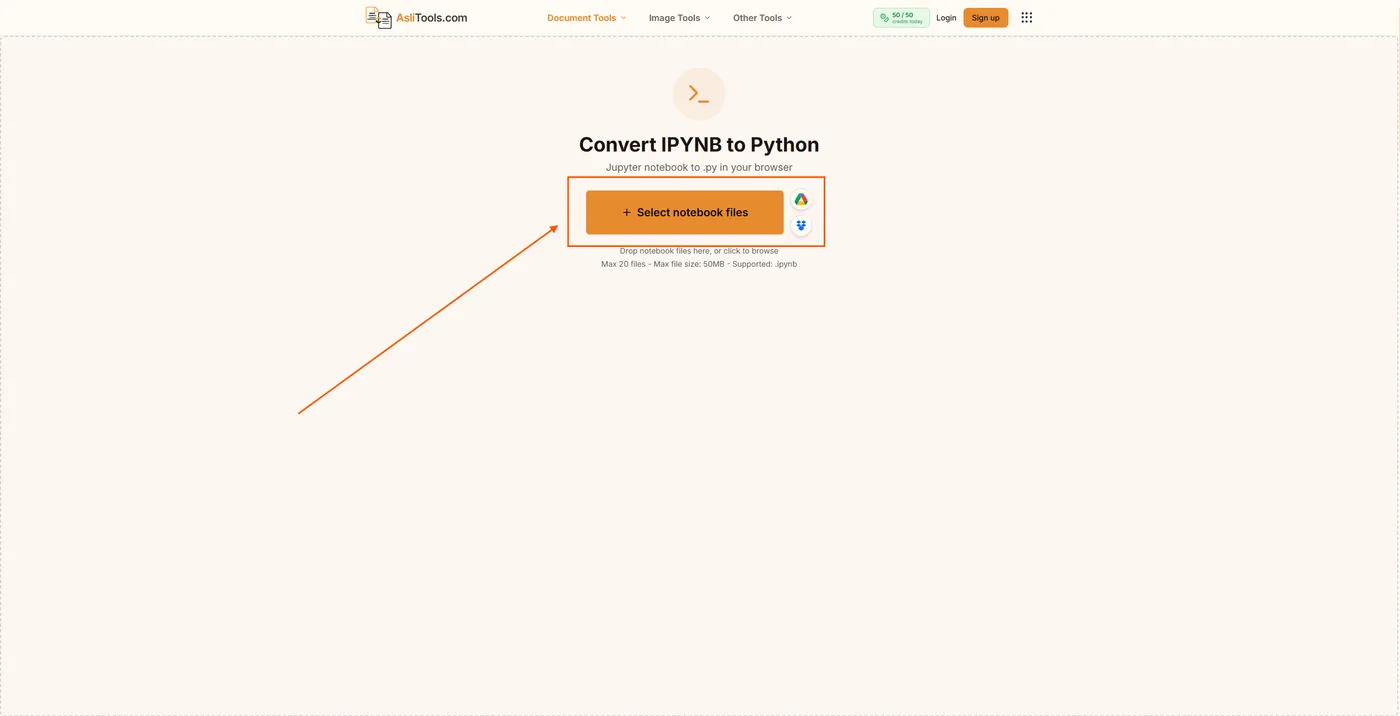
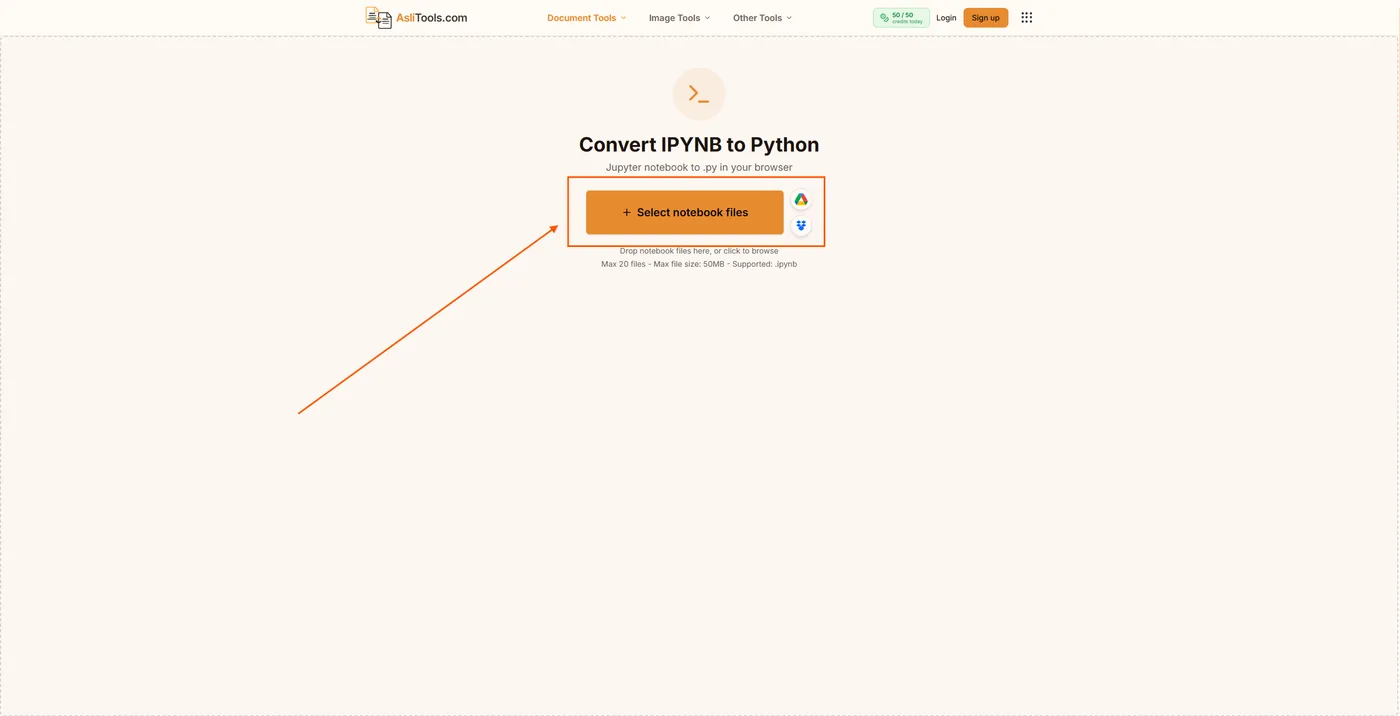
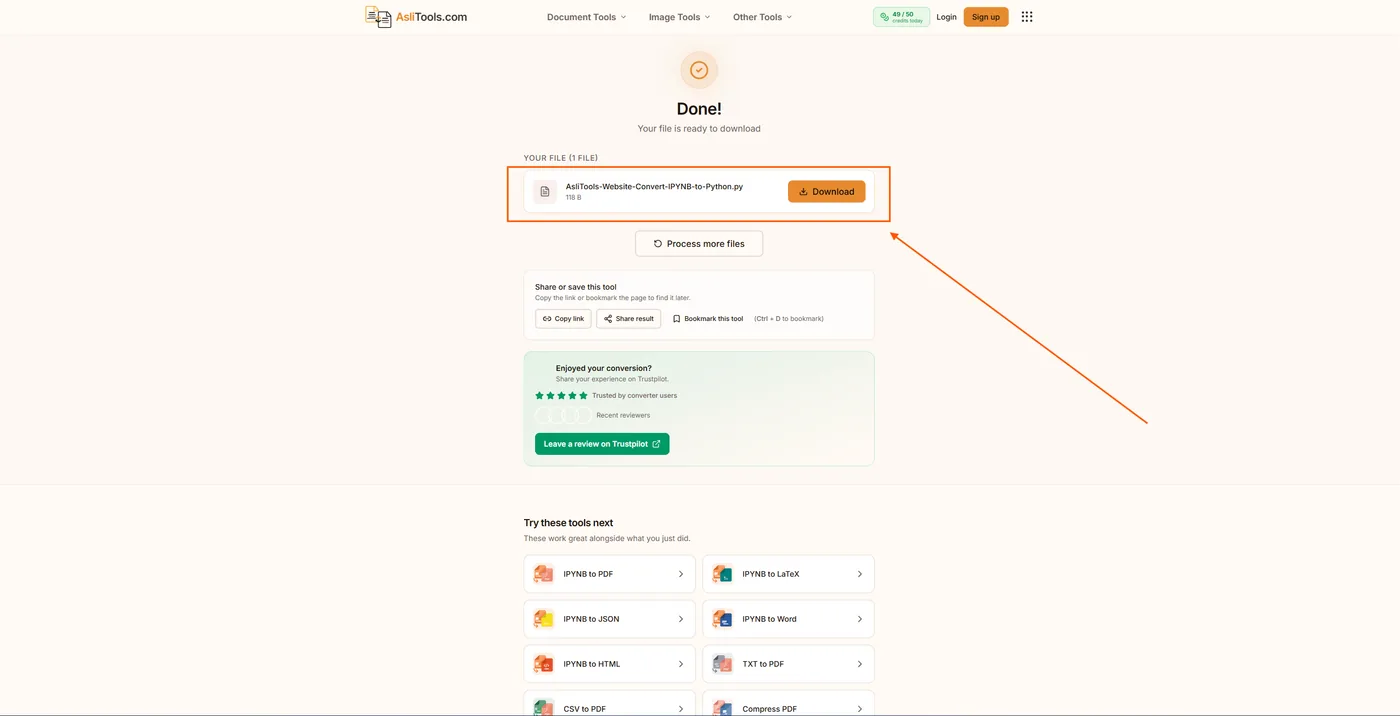
The AsliTools IPYNB to Python Converter runs the conversion entirely in your browser. You upload your .ipynb file, choose your script options, click convert, and download the .py file. Nothing gets stored on a server, and you do not need a Jupyter installation.
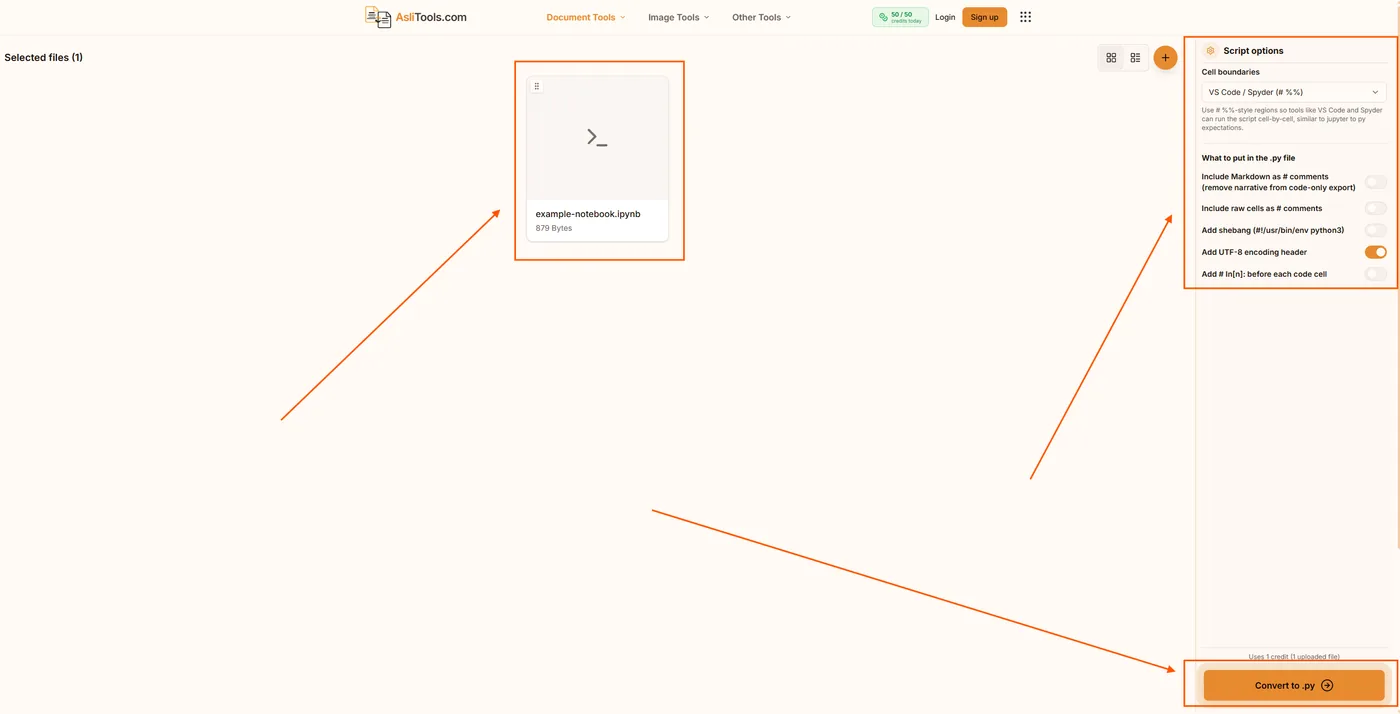
Here is what the tool lets you control before converting:
Cell boundaries format. You can export with # %% cell markers (the VS Code / Spyder format). This is useful if you want to open the script in VS Code's interactive Python window and still run it cell-by-cell — identical behavior to a Jupyter notebook, just without the .ipynb format.
Markdown as # comments. When toggled on, all your markdown cells become block comments in the script. When toggled off, the export strips them entirely and gives you a code-only file.
UTF-8 encoding header. Adds # -*- coding: utf-8 -*- at the top of the file. Useful if your notebook contains non-ASCII characters — Arabic, Pashto, Chinese, accented Latin characters, or mathematical symbols.
Shebang line. Adds #!/usr/bin/env python3 at line one. On Unix and macOS, this lets you run the script directly from the terminal with ./script.py rather than python3 script.py.
Raw cells as comments. Raw cells (cells set to "Raw" type in Jupyter) export as # comment lines instead of being dropped.
The download takes under a second for most notebooks. No login, no account, no file size tricks.
Method 2: Export Directly From Jupyter Notebook or JupyterLab
If you have Jupyter open with the notebook already loaded, this is the quickest path with zero extra tools.
In Jupyter Notebook (classic interface):
- Open your notebook.
- Click File in the top menu.
- Go to Download as.
- Select Python (.py).
The browser downloads the .py file immediately.
In JupyterLab:
- Open your notebook.
- Click File.
- Go to Save and Export Notebook As…
- Select Executable Script.
Both options use Jupyter's built-in nbconvert engine under the hood. Markdown cells become # comments, code cells export as-is, and outputs do not transfer.
Method 3: Use the nbconvert Command Line Tool
nbconvert ships with Jupyter. If you have Jupyter installed, you already have this tool. It gives you the most control over the conversion and works well for scripting or batch processing.
Basic single-file conversion:
jupyter nbconvert --to script my_notebook.ipynb
This creates my_notebook.py in the same directory.
Rename the output file:
jupyter nbconvert --to script my_notebook.ipynb --output production_script
Output: production_script.py
Convert every notebook in a folder at once:
jupyter nbconvert --to script *.ipynb
This is the fastest way to batch-convert a directory full of notebooks.
Strip prompts (cleaner output):
jupyter nbconvert --to script my_notebook.ipynb --no-prompt
The --no-prompt flag removes the # In[1]: cell numbering that nbconvert adds by default — useful for production scripts where those markers add clutter.
One thing worth knowing: nbconvert output often includes get_ipython() calls for Jupyter magic commands like %matplotlib inline or !pip install pandas. These will raise errors if you run the script outside a Jupyter kernel. You need to comment them out or replace them with standard Python equivalents after converting.
Method 4: Convert IPYNB to Python in VS Code
VS Code has first-class Jupyter support through its Jupyter extension. If you already work in VS Code, you can convert a notebook without touching the terminal.
- Open your
.ipynbfile in VS Code. It opens in the Notebook Editor automatically. - Click the export icon in the notebook toolbar (the three-dot menu or the export button depending on your VS Code version).
- Select Export → Python Script.
- VS Code opens the converted file as an untitled Python document.
- Save it as a
.pyfile.
VS Code uses # %% cell markers to delimit cells in the exported script. This means you can still run individual sections in VS Code's Interactive Python Window — it behaves exactly like a notebook but saves as a plain .py file that works with Git and standard tooling.
What Happens to Jupyter Magic Commands After Conversion?
This is the part most guides skip, but it matters when you actually run the converted file.
Jupyter magic commands (% and %% prefixes) and shell commands (!) are notebook-specific. They go through the IPython kernel. When nbconvert exports them, it wraps them in get_ipython() calls like this:
get_ipython().run_line_magic('matplotlib', 'inline')
get_ipython().system('pip install pandas')
These work fine if you run the script inside a Jupyter-aware environment. Outside of one — say, a plain python3 script.py call — they raise a NameError.
What to do: After conversion, search the script for get_ipython and replace the lines:
%matplotlib inline→import matplotlib; matplotlib.use('Agg')(for headless rendering) or just remove it!pip install package→ remove it (install dependencies in your environment separately)%load_ext→ check if the extension has a regular Python import equivalent
This cleanup takes five minutes and makes the script fully portable.
IPYNB to Python Conversion for VS Code and Spyder Users
If you use VS Code or Spyder as your primary IDE, the # %% cell boundary format is worth knowing. Both editors recognize this comment marker as a cell separator — exactly like a Jupyter cell break.
When you open a .py file with # %% markers in VS Code with the Python and Jupyter extensions installed, you get run buttons on every cell. You can execute sections independently, see output inline, and use the interactive window — all without the .ipynb format.
AsliTools lets you choose this output format directly in the converter: select "VS Code / Spyder (# %%)" under Cell Boundaries before converting. The exported .py file will have # %% dividers between each cell, making it immediately usable in either IDE with no manual editing.
Should You Clean Up the Script After Conversion?
Yes — for anything beyond personal use.
A freshly converted notebook script usually has a few rough edges:
- Cell markers (
# In[1]:) if you used basicnbconvertwithout--no-prompt - Magic command wrappers (
get_ipython()calls) - Hardcoded file paths that only work on your machine
- Print statements and exploratory code that do not belong in production logic
For a production script or one going into a shared repository, it is worth spending fifteen to thirty minutes on cleanup: remove the markers, fix the magic commands, and extract repeated logic into functions. The conversion gives you the raw material — the cleanup turns it into maintainable code.
For a quick one-time use, the raw output works fine as-is.
Other Tools You Might Need
If you work with Jupyter notebooks regularly, these tools on AsliTools pair well with the IPYNB to Python converter:
- IPYNB to PDF — export a notebook as a readable PDF report, outputs included
- IPYNB to HTML — shareable HTML version of your notebook with all cell outputs rendered
- IPYNB to Word — export notebook content as an editable Word document
- TXT to PDF — convert plain text files to PDF quickly
Summary
Converting a Jupyter notebook to a Python script takes under a minute with the right method. Use the AsliTools IPYNB to Python tool if you want browser-based conversion with format options — no Jupyter install needed, no file uploads. Use nbconvert on the command line if you want batch processing or pipeline automation. Use VS Code's export if you already live in that editor.
Whichever method you pick, expect to spend a few minutes cleaning up magic commands and hardcoded paths before you use the script in production. The notebook gets you to a working first draft. The cleanup turns it into something your team can actually ship.
Convert IPYNB to Python free →
Related tools on Asli Tools: IPYNB to PDF, IPYNB to HTML, IPYNB to Word, TXT to PDF, TXT to Word, and IPYNB to JSON.