
You have a photo of a document, a scanned receipt, or a screenshot of a report. You need the text out of it and into a Word file you can actually edit. Here is exactly how to do that in under two minutes, free, without installing anything.
The free JPG to Word converter on Asli Tools reads text from your image with OCR and creates an editable .docx file directly in your browser.
Why people need to convert JPG to Word
Most documents start as paper. A signed contract, a printed invoice, a page from a textbook, a handwritten note. You photograph it or scan it, and you end up with a JPG. At that point the text inside the image is locked. You cannot copy it, search it, or edit it. You would have to retype the whole thing.
That is the problem JPG to Word conversion solves. Instead of spending 20 minutes retyping a scanned page, you run OCR, short for Optical Character Recognition, and the tool reads the text automatically. The output is a proper .docx file you can open in Microsoft Word, Google Docs, LibreOffice, Apple Pages, or another word processor and start editing right away.
Students photograph lecture slides and textbook pages. Office workers digitize old printed contracts. Freelancers extract text from client screenshots. Legal teams turn printed evidence into searchable working documents. Basically, anyone who needs editable text from an image has this exact problem.
What is OCR and why does it matter for JPG to Word?
OCR stands for Optical Character Recognition. It is the technology that makes JPG to Word conversion useful.
When you upload an image, the OCR engine scans the pixels, identifies shapes that look like letters, and maps them to real characters. The result is selectable, copy-pasteable text rather than just a picture of text sitting inside a Word file.
Without OCR, a JPG-to-Word converter would only place the image inside a DOCX container. The file would open in Word, but you still could not edit the text. With OCR, you get actual words you can change, reformat, search, copy, and reuse.
The quality of OCR depends heavily on two things:
- Image quality: clean scans and sharp screenshots convert much better than blurry photos.
- Language selection: choosing the correct OCR language improves accuracy, especially for Arabic, Persian, Hindi, Chinese, Spanish, French, and German text.
How to convert JPG to Word online for free
You do not need Adobe Acrobat, Microsoft Office, or any desktop OCR application. Asli Tools' JPG to Word converter runs in your browser and supports up to 20 JPG files per batch, with a maximum file size of 50MB per image.
1. Open the tool
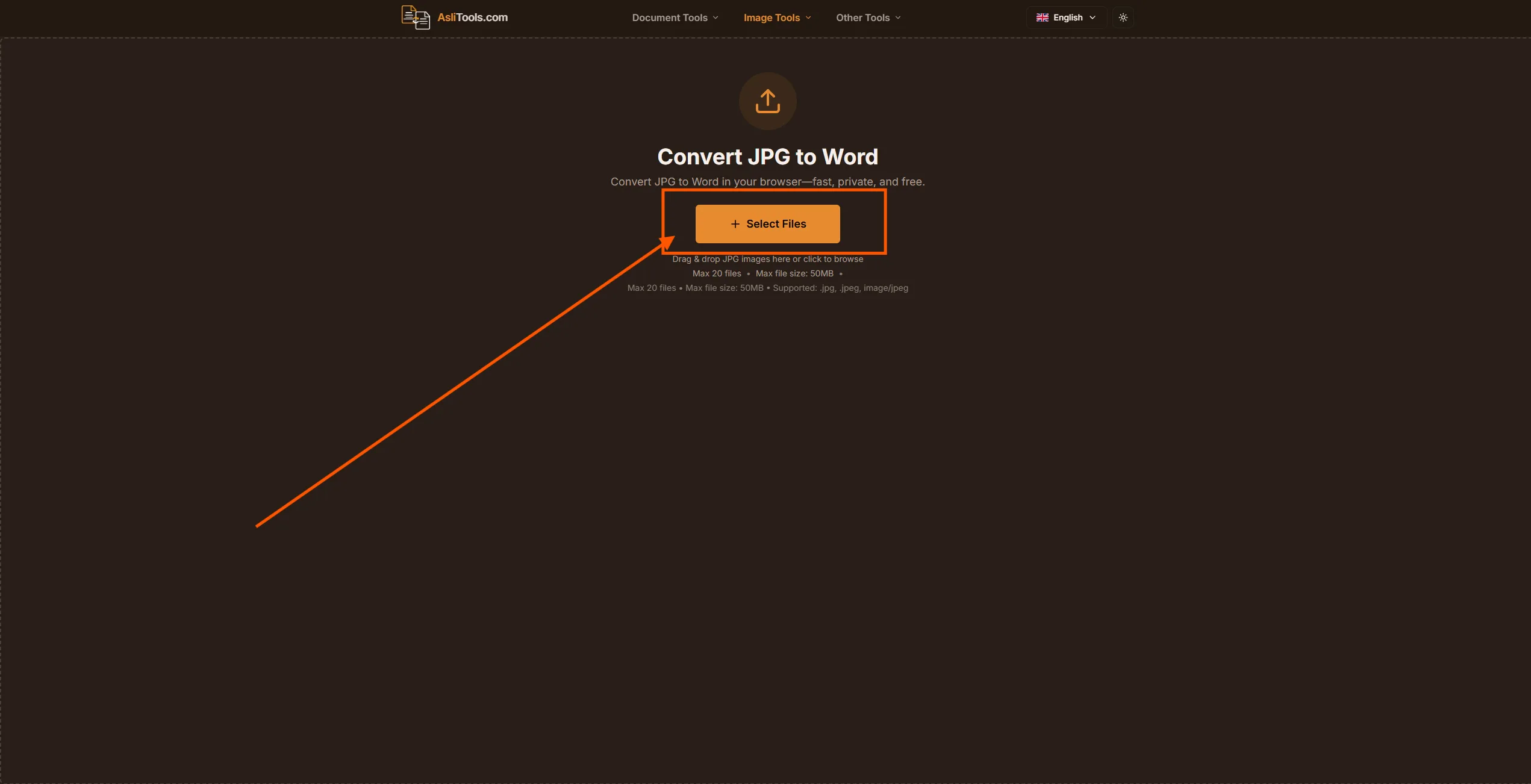
Go to the JPG to Word tool. You will see a drag-and-drop upload area. No sign-up is required. No email address. No account creation.
2. Upload your JPG
Drag your image into the upload area, or click Select Files to browse your device. The tool accepts .jpg and .jpeg images.
If you have a multi-page scanned document saved as separate images, upload them together. Batch conversion is much faster than repeating the process one image at a time.
3. Choose the OCR language
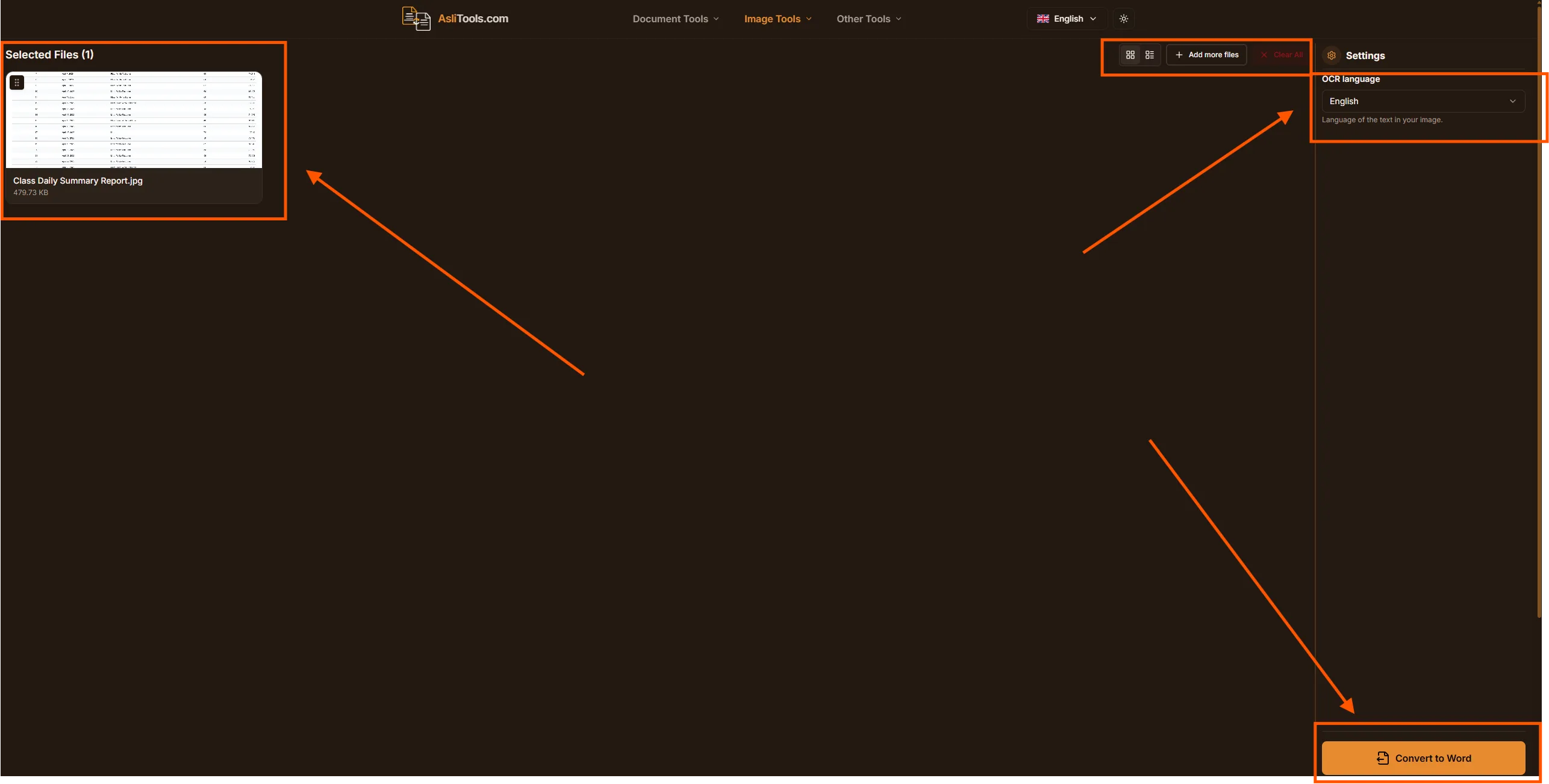
Open the settings panel and choose the language of the text in your image. The tool currently supports English, Arabic, Persian, Hindi, Spanish, French, German, and Simplified Chinese.
Picking the correct language matters. It helps OCR recognize the right letter shapes and improves the final Word document.
4. Convert and download
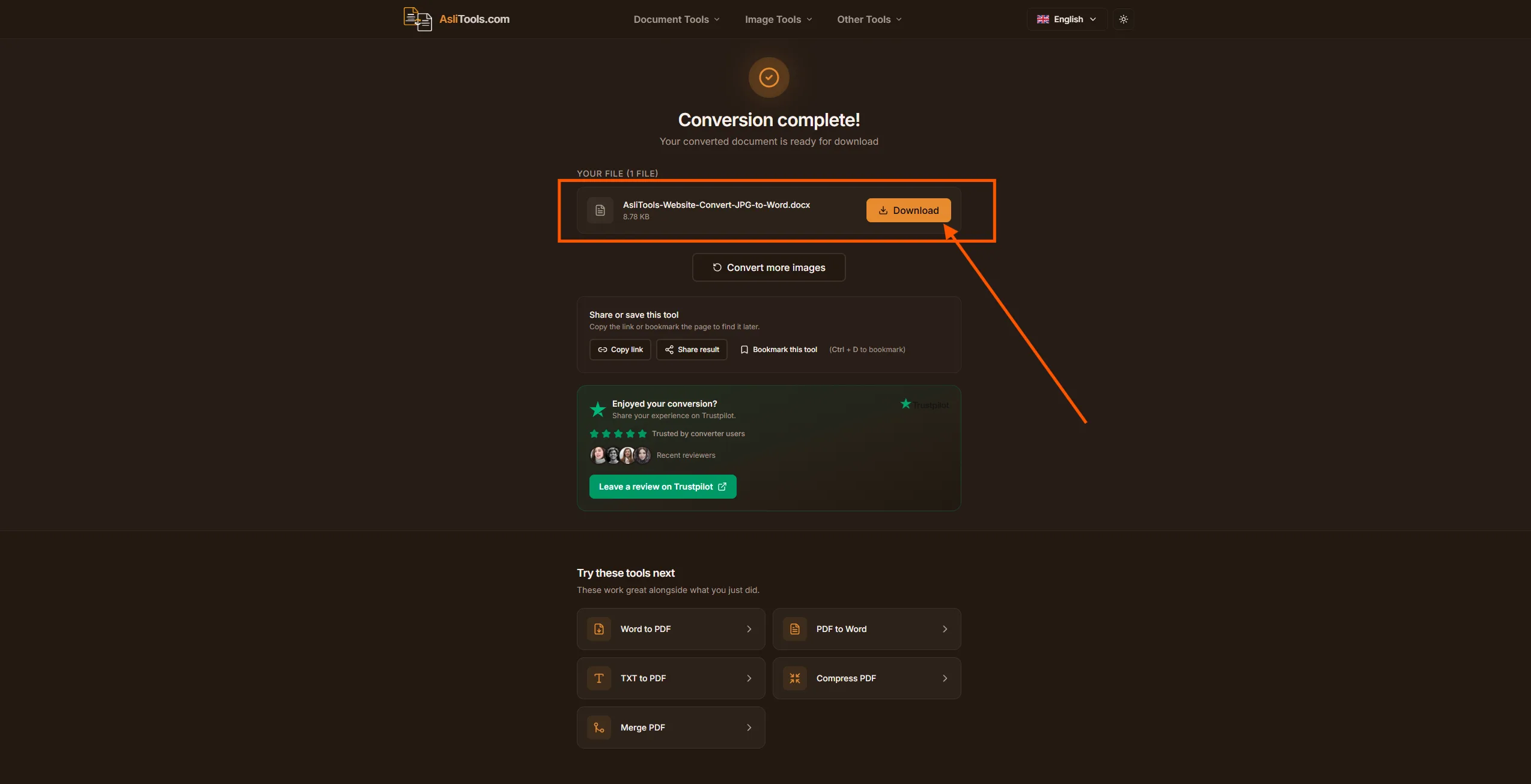
Click Convert to Word. The tool extracts the text from your JPG and generates a .docx file. Once the result is ready, click Download. For multiple images, use the download option for each result or download everything together when available.
Pro tip: If your image is a phone photo, crop out the table, wall, keyboard, or desk around the page before uploading. Less background clutter usually means cleaner OCR.
Convert scanned JPG to Word: what works best
Scanned documents are the strongest candidates for JPG to Word conversion. A scanner usually produces a flat, high-contrast image at a consistent resolution. The text is straight, the background is clean, and there are fewer shadows. OCR reads these almost perfectly.
Phone photos can work well too, but they need more care. You get better results when you:
- Hold the phone directly above the document, not at an angle.
- Use good natural light or bright indoor light.
- Avoid flash glare on glossy paper.
- Keep the full page inside the frame.
- Hold the phone steady so the text is not blurry.
- Use your phone's document scan mode if it has one.
Screenshots are often the easiest. They are already flat, sharp, and high resolution, so OCR can usually read them accurately.
Does converting JPG to Word keep the formatting?
The honest answer is: it depends on the original layout.
For a plain document such as a letter, report, list, invoice text, or basic form, conversion gives you a strong editable starting point. Paragraphs usually come through as paragraphs, and line breaks are easy to clean up in Word.
Complex layouts are harder. A magazine page with three columns, sidebars, pull quotes, and images will not convert perfectly. OCR can read the text, but it cannot always rebuild the exact visual design in a Word document.
Tables sit somewhere in the middle. Simple tables with clear borders may convert reasonably, but tables with merged cells, colored fills, or unusual spacing often need manual cleanup.
The practical rule is simple: if you need the text content, JPG to Word is a huge time saver. If you need a pixel-perfect copy of the original page, expect to spend a few minutes reformatting after conversion.
JPG to Word for students
Students are some of the most common users of JPG to Word tools, because images and printed documents show up everywhere in study work.
Textbook photos
Photograph a page or passage, convert it to Word, then copy the quote or notes into an essay draft. It is much faster than retyping a full paragraph by hand.
Lecture slides and whiteboards
If you took a quick photo during class, convert it into editable notes. You can reorganize the text, highlight important parts, and add your own explanations.
Assignment handouts
Printed assignment sheets, rubrics, and case studies become editable documents. You can annotate them, answer inside the document, or pull key instructions into your own workflow.
Research from printed sources
Old books, reports, and printed journals become searchable Word files. Once converted, you can use search, copy text, and quote passages more easily.
JPG to Word compared with other methods
| Method | Free? | OCR? | Editable output? | Works on phone? | Install required? |
|---|---|---|---|---|---|
| Asli Tools browser converter | Yes | Yes | Yes, DOCX | Yes | No |
| Manually retyping | Yes | Not needed | Yes | Yes | No |
| Adobe Acrobat | Usually paid | Yes | Yes | Limited | Often yes |
| Basic image insertion in Word or Docs | Yes | No | Image only | Yes | No |
| Desktop OCR software | Usually paid | Yes | Yes | Usually desktop only | Yes |
For most everyday documents, the browser-based approach is the fastest option: no installation, no account, and a real editable Word file at the end.
Is it safe to use an online JPG to Word converter?
It is fair to ask this. A document image may contain names, addresses, invoices, school work, internal notes, or other private details.
Asli Tools' JPG to Word converter uses browser-based OCR with Tesseract.js and creates the Word document in your browser. That means the conversion work happens on your device during normal use of the tool. There is no sign-up step, and no one manually reviews your document.
For everyday personal, school, and office files, that is a practical privacy-friendly workflow. For highly confidential material such as medical records, legal filings, government IDs, or sensitive financial data, you should still follow your organization's security rules before using any online tool.
Tips for better JPG to Word results
After you run a few conversions, the pattern becomes clear: OCR accuracy starts with the source image.
- Use a sharp image. If the text looks blurry to your eyes, OCR will struggle too.
- Improve contrast. Dark text on a light background works best.
- Straighten the page. Tilted text is harder to recognize.
- Crop unnecessary background. Remove desks, hands, shadows, and page edges when possible.
- Choose the right language. Do not leave OCR set to English if the document is Arabic, Persian, Spanish, French, German, Hindi, or Chinese.
- Review the output. OCR is good, but not perfect. Check numbers, names, punctuation, and characters that look similar, such as
0andO, or1andl. - Keep the original JPG. Do not delete it until you are satisfied with the Word file.
JPG to Word vs JPG to PDF
Use JPG to Word when you need editable text.
Use JPG to PDF when you only need to share, print, archive, or combine images into a fixed document.
The difference is important. A PDF is great for preserving appearance. A Word document is better when you need to edit the content. If you already have a PDF and need text from it, try PDF to Word instead.
Ready to convert your JPG to Word?
If you have a scanned page, receipt, screenshot, or document photo, you can turn it into an editable Word file now.
No software, no sign-up, and no retyping.
Related tools on Asli Tools: JPG to Excel, JPG to PowerPoint, PNG to JPG, JPG to PNG, PDF to Excel, JPG to SVG, and JPG to PDF.