
If your bank just handed you a .qbo file and you do not have QuickBooks installed, you have probably already tried double-clicking it and watched nothing useful happen. That is normal. A QBO file is not built to be opened like a regular document — it is built to be imported into accounting software. But you do not need QuickBooks to get the data out of it. You just need the right converter, and five minutes.
This guide walks through what a QBO file actually contains, why it will not open in Excel on its own, and exactly how to turn it into a CSV file you can use anywhere — reconciliation spreadsheet, client email, reporting tool, whatever you need it for.
What a QBO File Actually Is
A QBO file is a bank transaction export built on the OFX (Open Financial Exchange) standard. Banks generate it specifically for QuickBooks Web Connect, which is why the extension is QBO instead of the more generic OFX. Under the hood, though, the two formats share the same structure: XML-style tags storing account details, balances, and a list of transactions with dates, amounts, payees, and memos.
That structure is exactly what makes it hard to read directly. Open a QBO file in Notepad or TextEdit and you will see something like this:
<STMTTRN>
<TRNTYPE>DEBIT
<DTPOSTED>20260115
<TRNAMT>-42.50
<NAME>Coffee Shop
</STMTTRN>
That is one transaction. A real statement might have two hundred of them, all formatted this way. Technically readable, practically useless if you want to sort, filter, or total anything.
Why You Cannot Just Open It in Excel
Excel and Google Sheets expect comma- or tab-separated rows and columns. A QBO file is tagged data, not tabular data, so double-clicking it in Excel either throws an error or dumps a wall of unreadable text into a single cell. This is not a bug on your end — it is simply the wrong tool for the file type. You need something that parses the OFX tags and reorganizes them into rows first. That is what a QBO-to-CSV converter does.
Do You Actually Need QuickBooks for This?
No. This is worth saying plainly, because a lot of guides quietly assume you already have QuickBooks Desktop or an active QuickBooks Online subscription. If your only goal is to view or reuse the transaction data — not to import it into your books — QuickBooks is not required at any point in the process. A browser-based converter reads the same OFX structure QuickBooks would read, and outputs a spreadsheet instead of a ledger entry. You can convert the file, view it, and be done, without ever opening an Intuit product.
How to Convert a QBO File to CSV, Step by Step
- Locate your QBO file. It is usually in your Downloads folder, wherever your bank saved it after you clicked "Export" or "Download transactions" on their site.
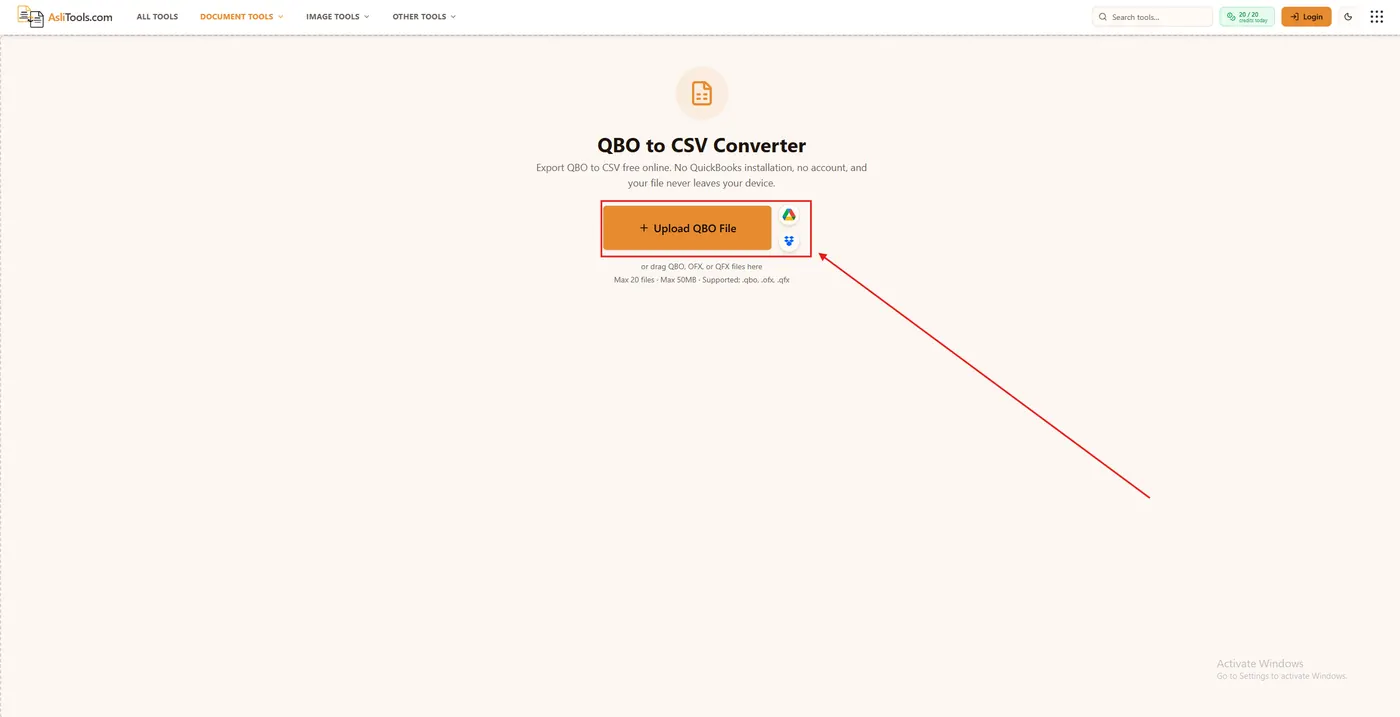
- Open a QBO to CSV converter in your browser. AsliTools' QBO to CSV converter works entirely client-side, so nothing about your bank data gets uploaded to a server.
- Drag the file in or click to browse. The tool reads the file the moment it loads.
- Check the preview. You should see your selected QBO file listed, with settings for date format, amount columns, and optional fields like memo and FITID. This is your chance to confirm the file parsed correctly before downloading anything.
- Download the CSV. One click, and the file lands in your Downloads folder ready to open in Excel, Google Sheets, or any spreadsheet tool.
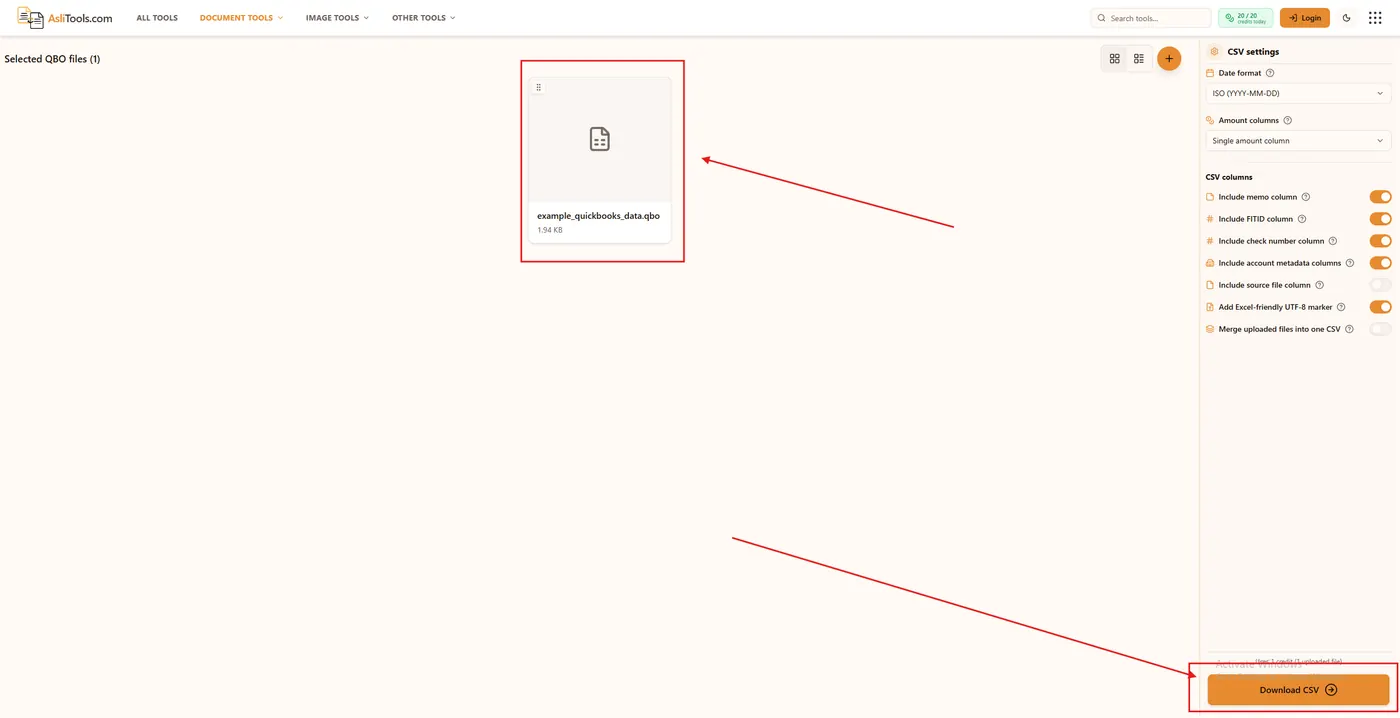
That is the whole process. No account setup, no software install, no waiting on a server queue.
Handling Multi-Account Files
Some banks bundle multiple accounts — checking and savings, for example — into a single QBO export. If you convert a file like this with a converter that is not built to handle it, you can end up with transactions from two different accounts merged into one column with no way to separate them. A properly built converter should split multi-account files by account automatically, so double-check this before you commit to a tool, especially if you manage more than one account with the same bank.
Avoiding Duplicate Transactions After Import
If your end goal is eventually getting this data into QuickBooks or another accounting tool, watch for duplicates. This trips up more people than the conversion itself. If QuickBooks already pulled in some of these transactions through a live bank feed, and you later import the same date range from your converted CSV, you will end up with every transaction listed twice. Before importing anywhere, check the date range already sitting in your bank feed or register, and only import the CSV rows that fall outside it.
When CSV Is the Right Format — and When It Is Not
CSV is the right choice when you want to review, analyze, or share the data as a spreadsheet. It is the wrong choice if your actual goal is importing bank transactions into QuickBooks Desktop, which does not accept CSV for bank feeds at all — it requires QBO, QFX, or OFX. In that case, you want a CSV to QBO converter instead, which does the reverse of what this guide covers.
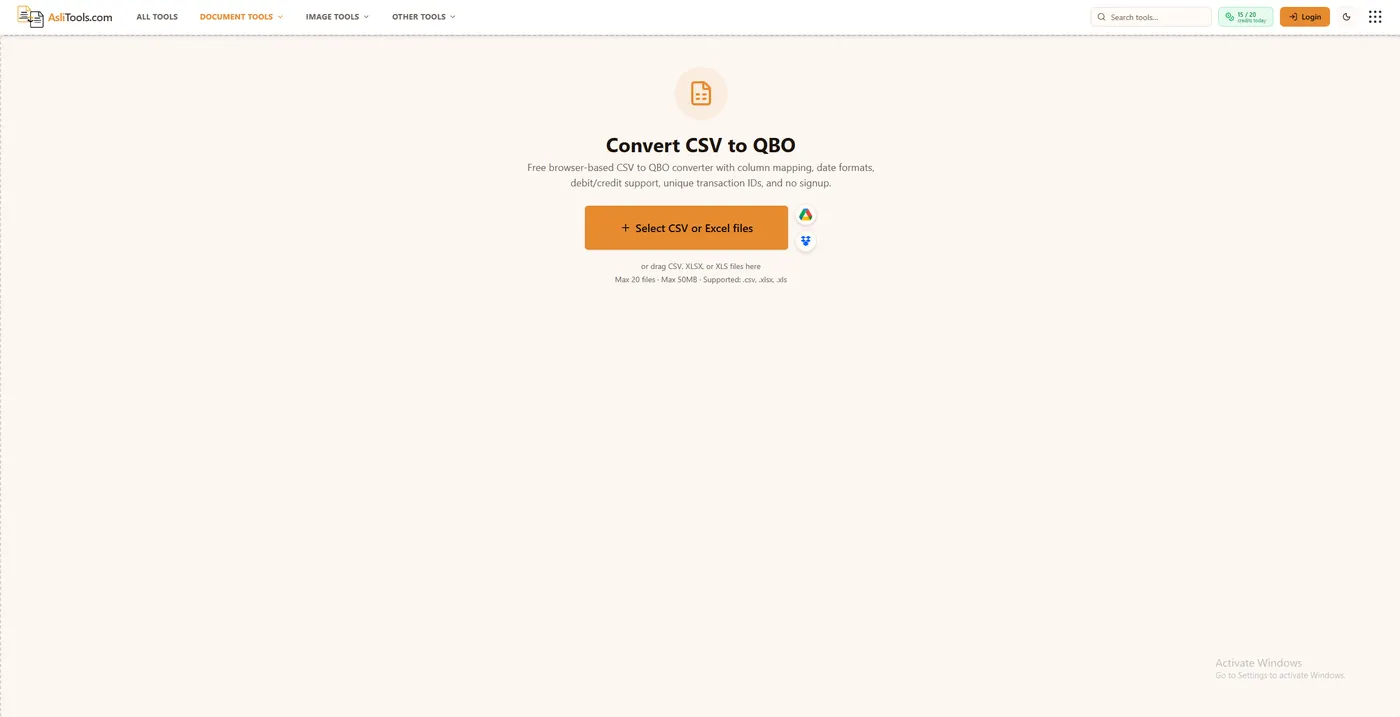
And if you are starting from a raw OFX file rather than a bank-branded QBO file, an OFX to QBO converter handles that conversion directly.
Convert your own file with the QBO to CSV Converter — free, browser-based, and built for exactly the situation described in this guide.
Related tools on Asli Tools: QBO to CSV, CSV to QBO, OFX to QBO, QFX to CSV, and IIF to CSV.