
I noticed something odd the first time a client emailed me a "photo" that Windows refused to open properly in half the programs on my laptop. The file icon looked like a normal image, the thumbnail showed a normal image, but double-clicking it kept throwing compatibility warnings in older apps. The extension was .jfif, not .jpg. Once I dug into it, I found this happens constantly, especially to people who save images straight from Chrome, WhatsApp Web, or Facebook.
If you've landed here because a file like sample.jfif showed up on your device out of nowhere and you just need it in a clean, shareable PDF, you're in the right place. I'll explain why this keeps happening, then walk through converting it properly using the JFIF to PDF converter on Asli Tools, including the settings that actually matter for quality.
What is a JFIF file, really?
JFIF stands for JPEG File Interchange Format. It's not a separate image format from JPG — it's the technical specification that JPG images have followed since 1991. In practice, a .jfif file and a .jpg file usually contain identical image data. The only real difference most people ever run into is the file extension itself.
So why does the extension change? Windows 10 and 11 sometimes rename downloaded images to .jfif automatically, particularly when they come from a browser cache rather than a direct download. Chrome does this with right-click "Save Image As" on certain sites. The image itself hasn't changed. What's changed is that some older software, some mobile apps, and a fair number of print shops and document portals only recognize the .jpg or .jpeg extension and reject .jfif outright, even though the underlying picture is fine.
This is exactly why converting to PDF, rather than just renaming the file, solves the problem for good. A PDF opens identically on every device, every operating system, and every printer, with no extension confusion at all.
If you only need to fix the extension for apps that accept JPG but not JFIF, our JFIF to PNG guide covers that path in detail. PDF is the better choice when the file is heading to a form, printer, or archive.
When you actually need to convert JFIF to PDF
From working with client files and building this tool, these are the situations I see most often:
- Submitting a document or ID photo to a portal that only accepts PDF uploads
- Combining several screenshots or receipts into one file instead of sending five separate images
- Printing an image with proper margins and page sizing instead of a browser's default image print
- Archiving photos in a format that will still open in twenty years, regardless of what software exists then
If you're just going to view the image on your own phone, you don't need to convert anything. Conversion earns its place when the file is going somewhere else — a form, an inbox, a printer, or long-term storage.
How to convert JFIF to PDF (step-by-step)
Here's the exact process using the JFIF to PDF converter on Asli Tools. It runs entirely in your browser, so the image never leaves your device — nothing gets uploaded to a server.
Step 1: Select your file
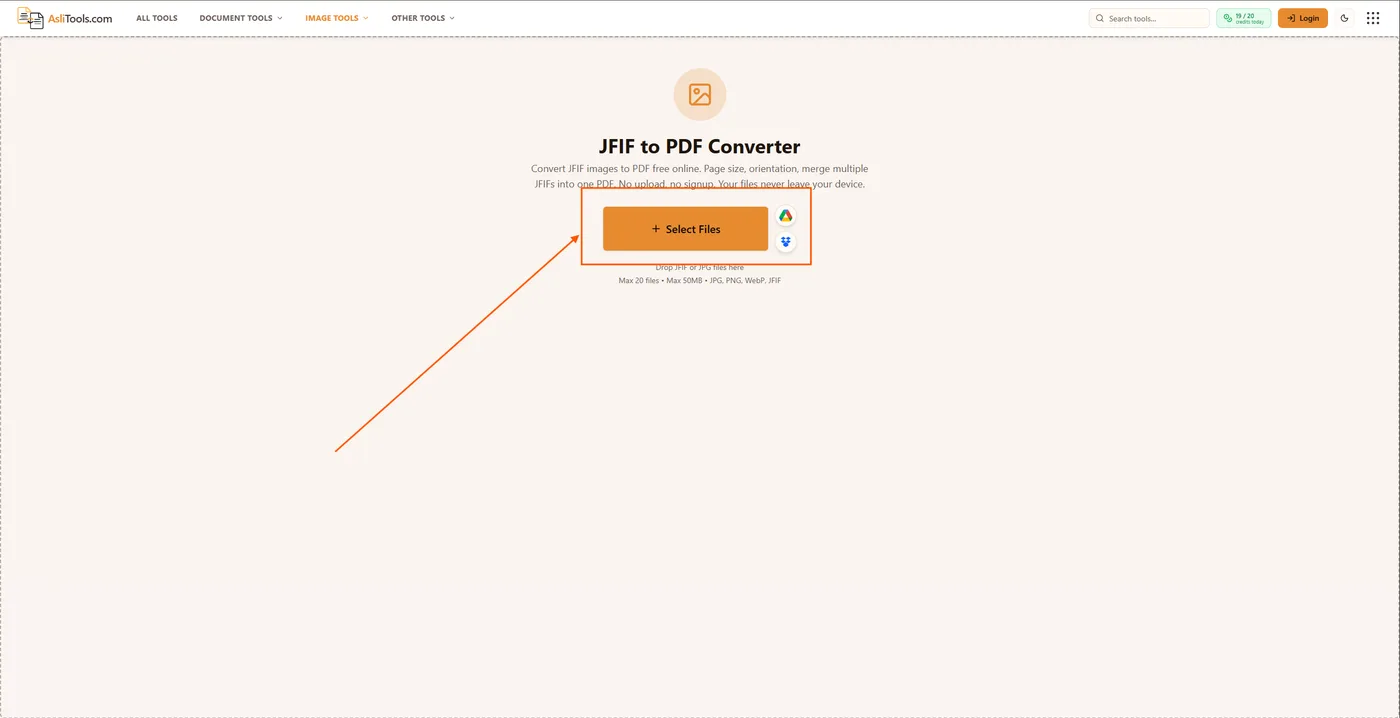
Open the tool and click Select Files, or simply drag your .jfif or .jpg file into the box. You can also pull a file directly from Google Drive or Dropbox if that's where your image lives.
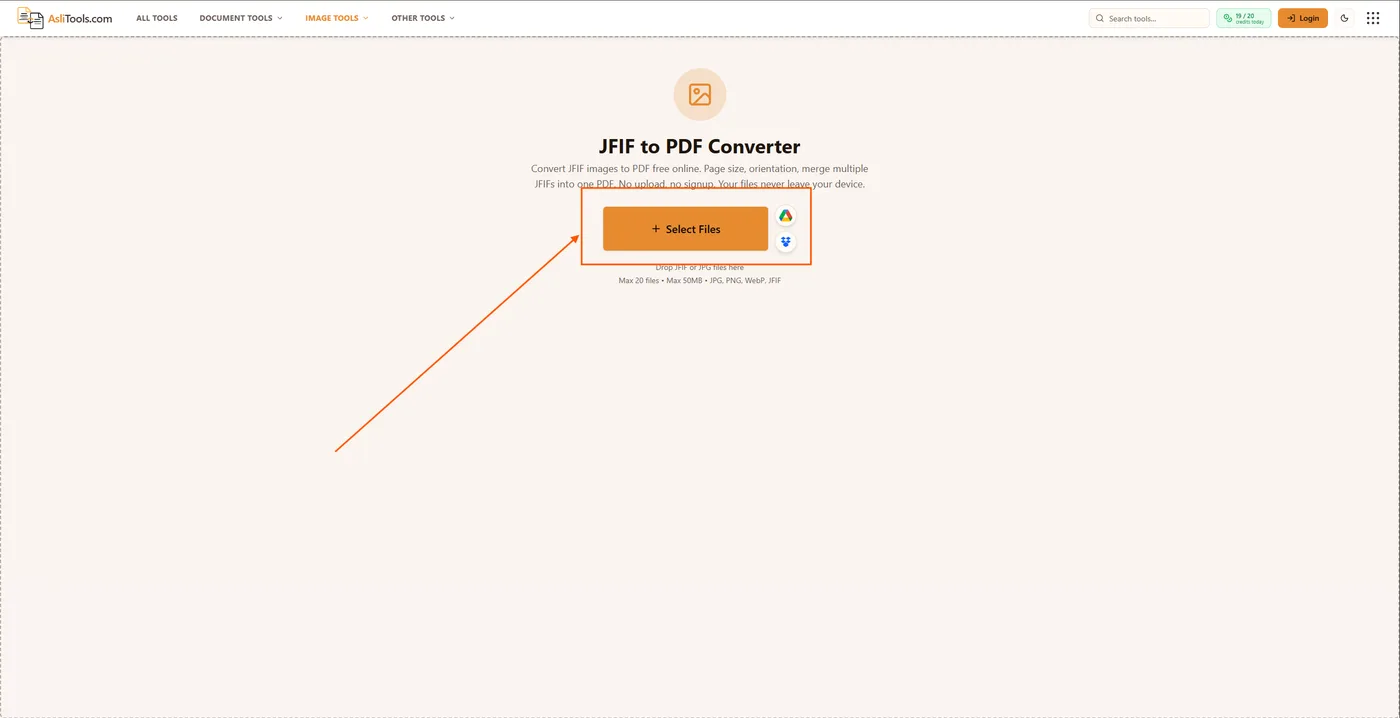
A quick tip from experience: if you're converting more than one image at a time, select them all here in one go. The tool supports up to 20 files at once, so there's no need to repeat the process for every photo separately — this is especially handy if you're building one PDF out of several receipts or ID scans.
Step 2: Adjust the PDF options
Once your file loads, you'll see a panel of settings on the right. This is where most online converters give you nothing, and where Asli Tools actually lets you control the output:
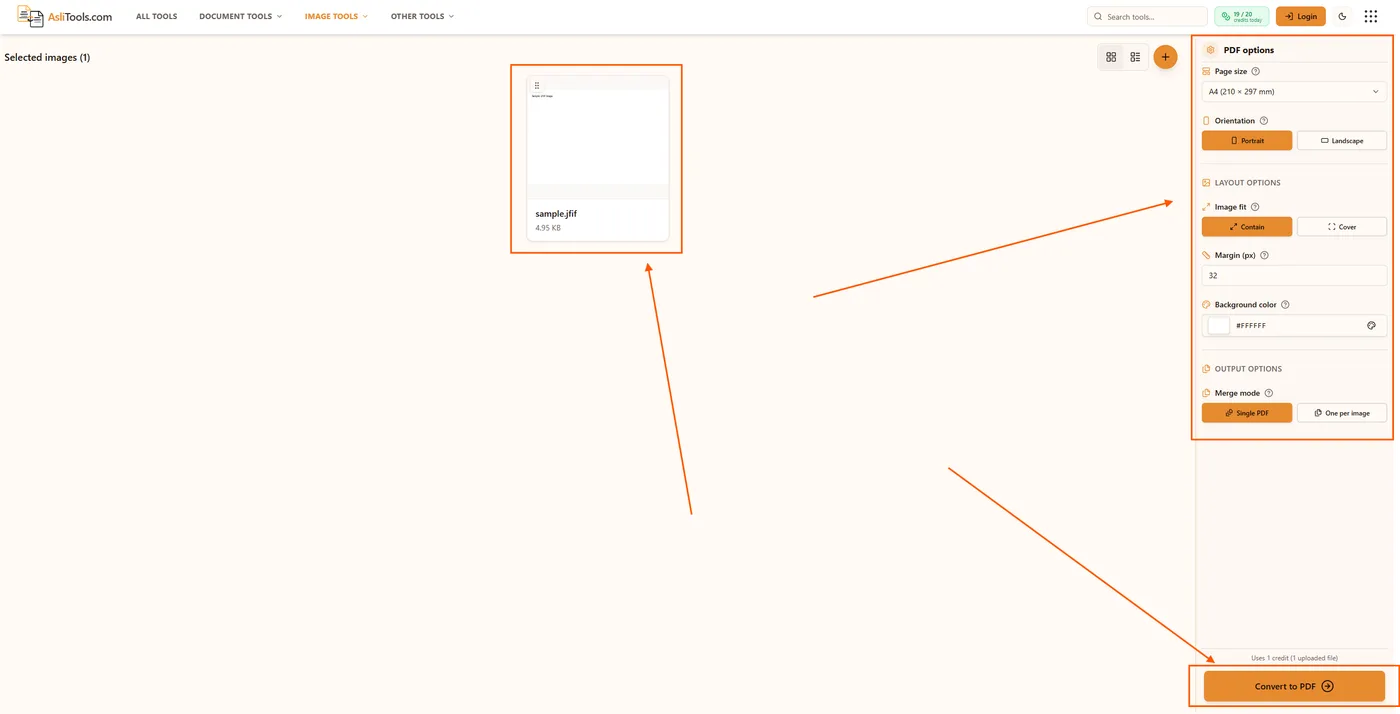
- Page size — A4 is the safe default for documents; use Letter if the recipient is in the US or Canada.
- Orientation — Portrait works for most photos and ID scans; switch to Landscape for wide images like screenshots of spreadsheets.
- Image fit — Choose Contain to keep the entire image visible with no cropping, or Cover if you want the image to fill the page edge to edge. For anything with text in it, like a receipt or a screenshot, always use Contain, or you risk cutting off important content.
- Margin — The default of 32px looks clean for most cases. Drop it closer to 0 if you're printing and want the image as large as possible on the page.
- Merge mode — Pick Single PDF if you're combining multiple images into one document, or One per image if you need separate PDF files.
Step 3: Convert and download
Click Convert to PDF. The conversion happens in seconds since it's processed locally in your browser rather than sent to a remote server. Once it's done, your file is ready to download immediately.
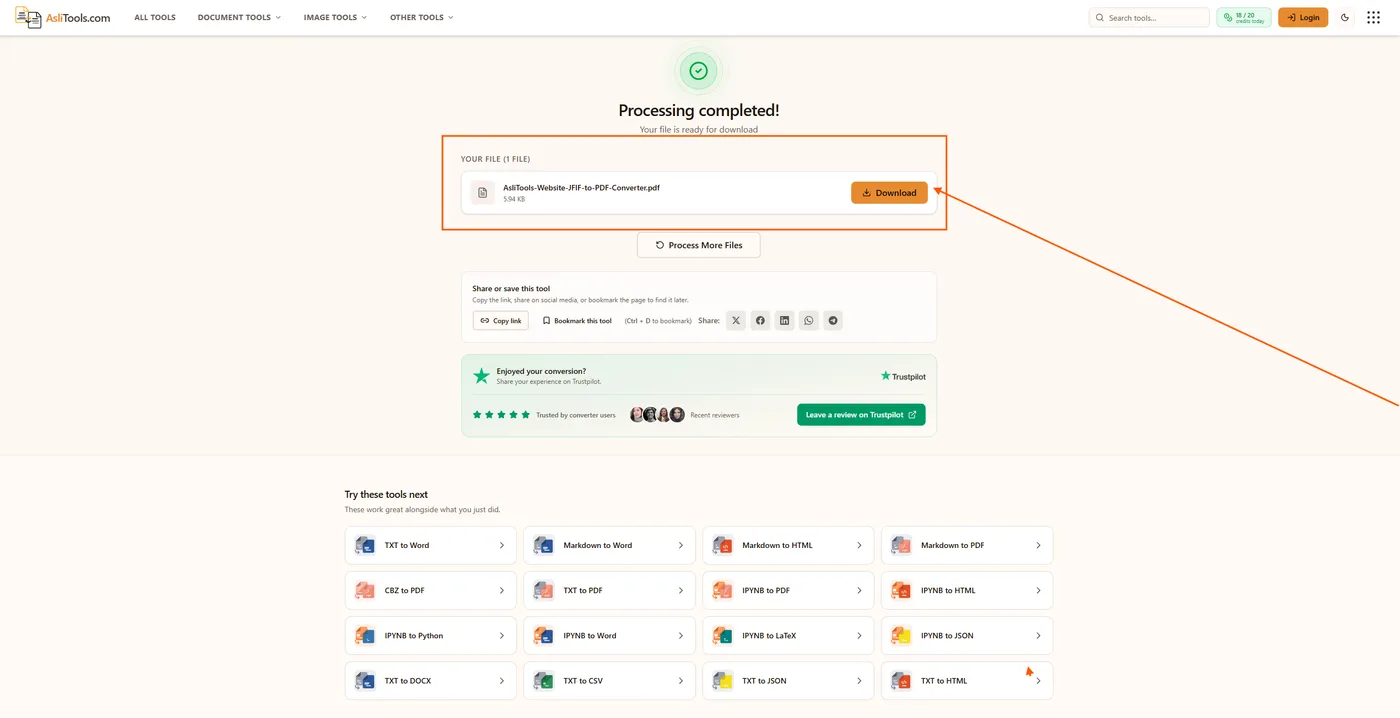
That's it. No account, no email address, no watermark stamped across your document.
Does converting JFIF to PDF reduce image quality?
This is the question I get asked most, and it deserves a real answer instead of the vague "no quality loss guaranteed!" line most conversion sites use.
The image itself isn't re-compressed during this process — the original JPEG data is placed into the PDF container as-is. What can affect the visual result on the page is your Image Fit setting. Choosing Cover on a small image and stretching it across a large page can make it look soft or blocky, simply because you're enlarging pixels that were never there to begin with. Choosing Contain preserves the image at its natural resolution within the page, which is why I'd recommend it as the default unless you specifically need a full-bleed layout.
JFIF to PDF vs. other formats
If you're deciding between formats for your final document, here's how it breaks down based on what I've seen clients actually need:
- Choose PDF when the file needs to go to a form, portal, printer, or anyone who might view it on an unfamiliar device.
- Convert to PNG instead if you specifically need a transparent background or you're re-uploading the image to a website. Our JFIF to PNG tool handles that conversion.
- Keep it as JPG if you're just archiving personal photos and don't need document-style formatting — browse the image tools category for quick format fixes.
If you frequently work with scanned pages or notebooks instead of standalone photos, our IPYNB to PDF and TXT to PDF converters follow the same no-upload, browser-based approach described above.
Related tools on Asli Tools: JFIF to PDF, JFIF to PNG, JPG to PDF, PNG to PDF, and document conversion tools.
Have a batch of scanned documents or notebooks to convert instead? Explore the full list of document conversion tools on Asli Tools.