
I have spent years building and testing document conversion tools, and the JPG to Word request is one I see more than almost any other. Someone has a photo of a contract, a screenshot of a report, or a scanned page from an old textbook, and they need that text in a Word file they can actually edit. Retyping it by hand wastes an evening. This guide walks through exactly how the conversion works, where it breaks down, and how to get a clean result the first time.
If you just want to convert a file right now, you can use our JPG to Word converter and follow along with the steps below.
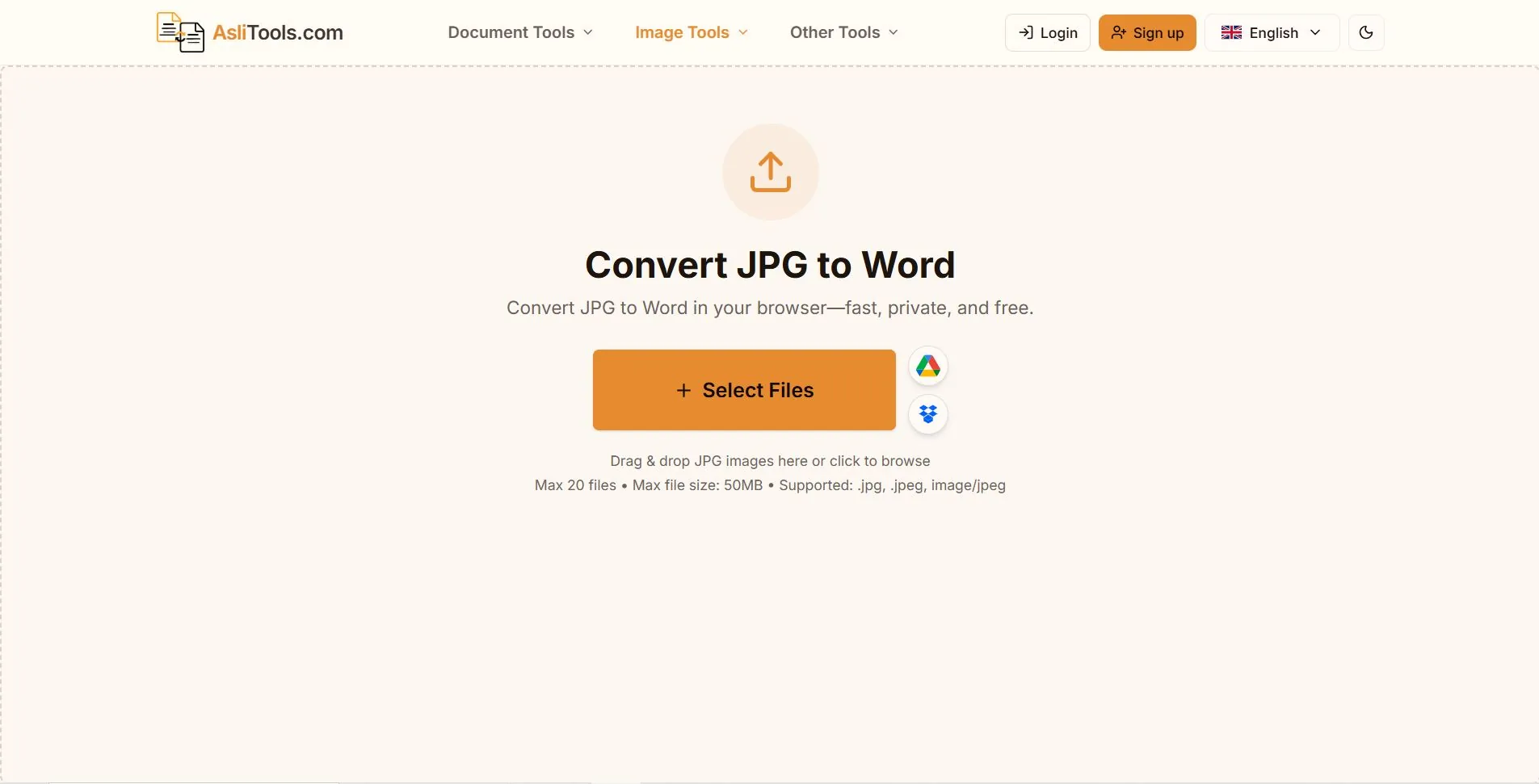
What Actually Happens When You Convert JPG to Word
A JPG is a picture. It has no concept of letters, words, or paragraphs, only pixels. Word, on the other hand, stores text as text, which is why you can click into it and start typing. To bridge that gap, a converter has to run optical character recognition, or OCR, on the image first.
OCR looks at the pixel patterns in your photo and matches them against known letterforms. When it finds a match, it writes out the corresponding character. Once it has identified every word on the page, the tool arranges that text into a DOCX file and tries to rebuild the original layout: paragraphs, line breaks, and in better tools, basic structure like headings and spacing.
That second part, rebuilding the layout, is where most converters fall short. Getting the text right is only half the job. Getting it right in a document that still looks like the original page is the part that actually saves you time.
How to Convert JPG to Word, Step by Step
I will walk through this using our converter, but the general process is the same anywhere you go.
Step 1: Upload your image
Drag your JPG or JPEG file into the upload box, or click to browse your device. You can add several images at once if you are converting a multi-page document, since most people scanning a contract or a chapter from a book have more than one photo to deal with.
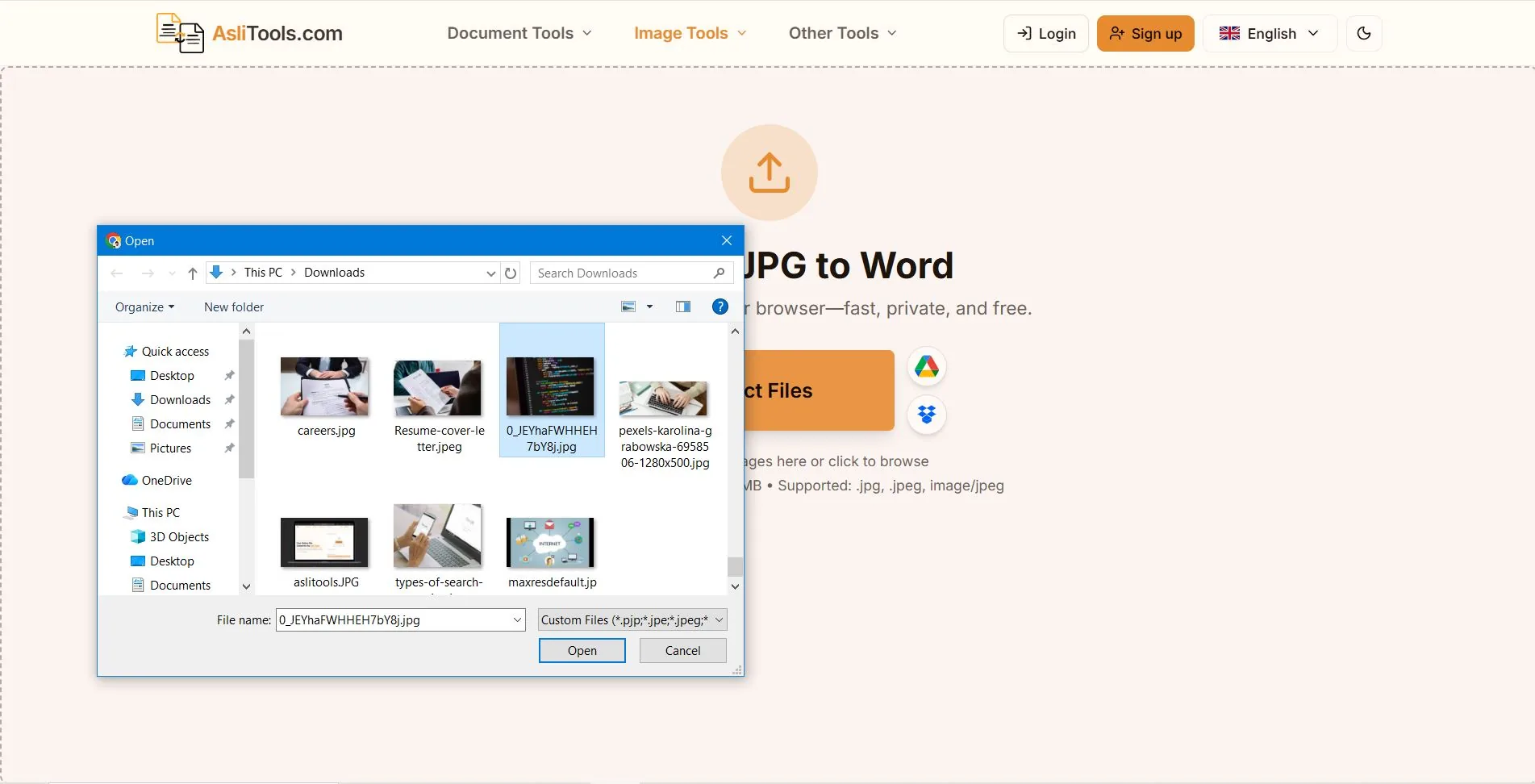
Step 2: Set your OCR language
Pick the language that matches the text in your image. This step gets skipped constantly, and it is the single most common reason people end up with garbled output. An OCR engine reading English text with a Pashto or Arabic language setting selected will produce nonsense, even though the underlying technology is solid. If your page mixes two languages, look for a tool that supports multi-language detection in one pass.
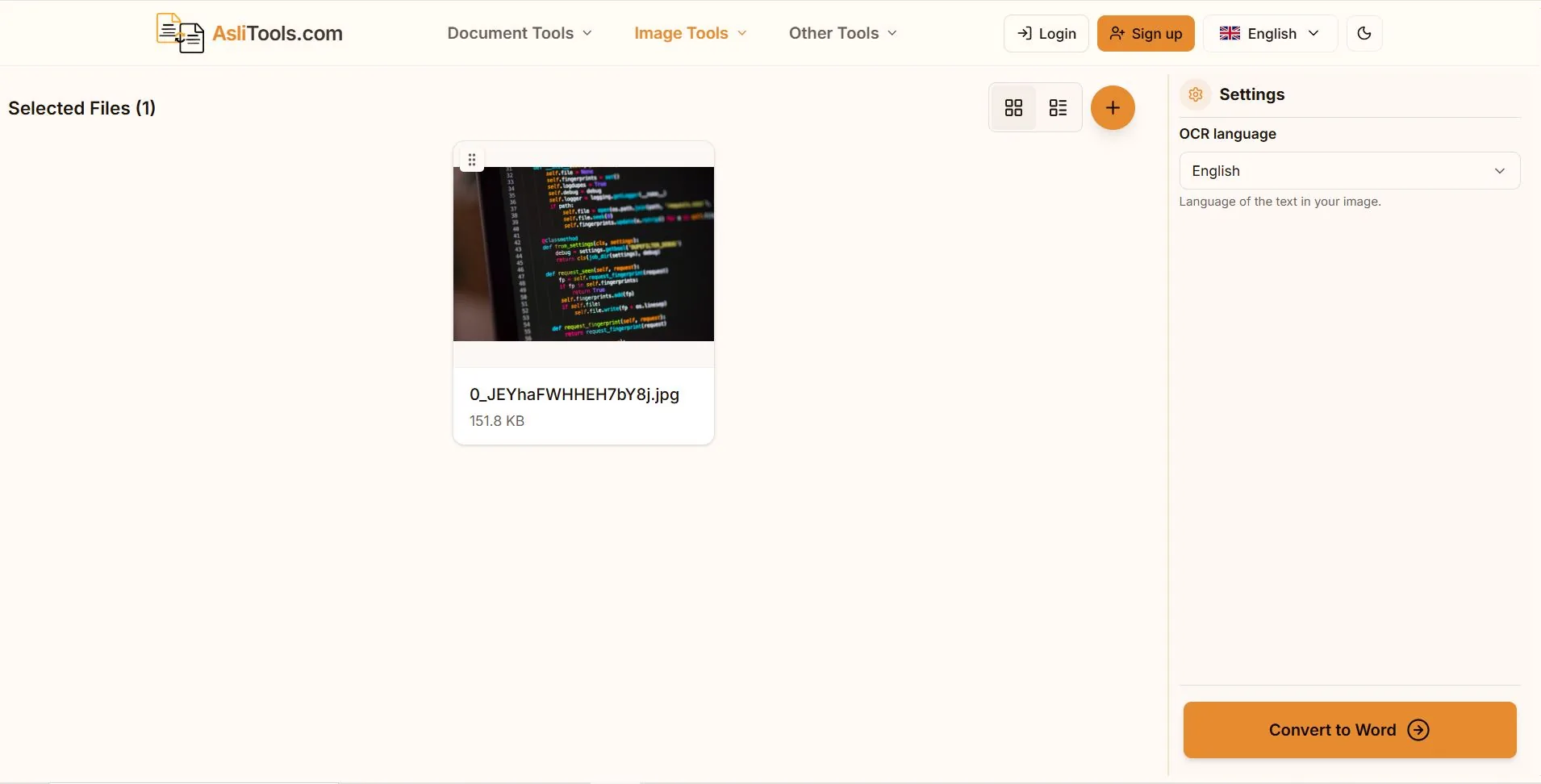
Step 3: Convert and review
Click convert and wait a few seconds. Processing time depends on image resolution and how much text is on the page, but a single page typically finishes in under ten seconds. Once it is done, open the result and skim it before you do anything else. Compare a few lines against the original image, particularly numbers, dates, and proper names, since these are the spots OCR engines misread most often.
Step 4: Download your DOCX
Download the file and open it in Word, Google Docs, or LibreOffice. From here it behaves like any other document: searchable, editable, and ready to format.
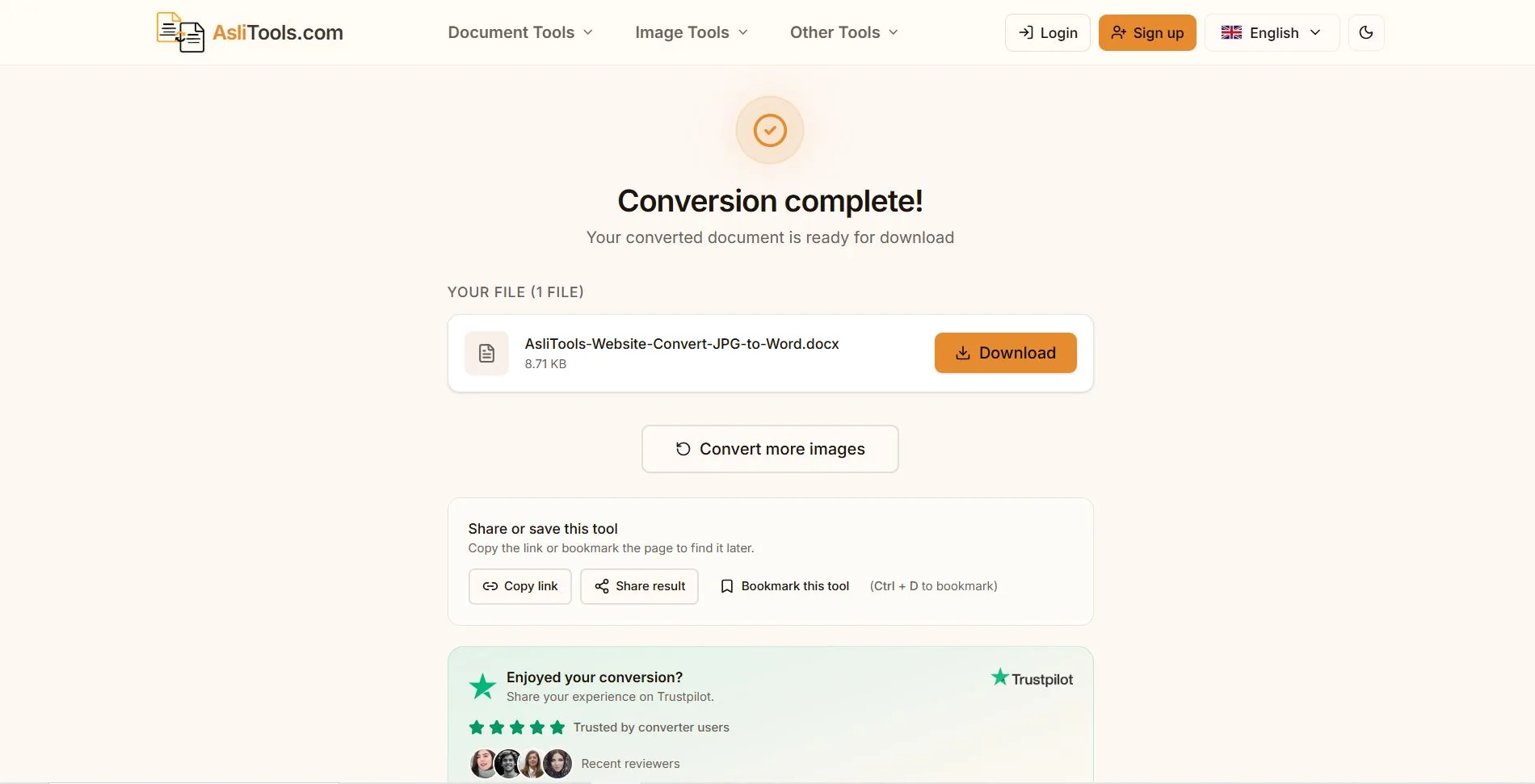
You can try this entire flow on our free JPG to Word converter, which runs the OCR step in your browser rather than uploading your image to a server.
Why Image Quality Decides the Outcome More Than the Tool You Pick
I have tested dozens of OCR engines over the years, including the ones built into major office suites, and the pattern is always the same: a sharp, well-lit, straight-on photo converts almost perfectly regardless of which tool processes it, while a blurry or skewed photo struggles no matter how advanced the engine is. People tend to blame the converter when the real problem sits upstream, in how the photo was taken.
A few habits make a measurable difference:
Hold the camera directly above the page instead of at an angle. Even a slight tilt distorts character shapes enough to confuse the recognition engine, especially on smaller fonts.
Use natural light or an even indoor light source. Shadows across part of a page are one of the most common causes of dropped words, because the OCR engine cannot distinguish ink from shadow in low-contrast areas.
Fill the frame with the document and crop out the background. Extra desk, table, or hand in the shot does not break the conversion, but it gives the engine more to ignore and occasionally introduces stray characters from textures in the background.
Avoid glossy paper under direct light. The glare washes out entire sections of text, and once that happens no software can recover characters that were never captured in the photo.
If you are converting an old document and the only copy you have is already faded or damaged, expect to do some manual correction after conversion. That is normal, and it is faster than retyping the whole page from scratch.
Will the Formatting Survive the Conversion?
This is the question I get asked the most, and the honest answer is: it depends on the layout.
Plain paragraphs of text, the kind you find in a letter, a typed report, or a page from a novel, convert cleanly almost every time. Line breaks land where they should, and the resulting DOCX needs little to no cleanup.
Tables are the hardest layout to preserve. A converter has to recognize rows and columns as a grid rather than as loose lines of text, and a basic tool will often just dump every cell value into one running paragraph. If your image contains a table, our JPG to Excel tool is usually the better choice, since it is built specifically to detect grid structure and reconstruct rows and columns rather than flattening them into text.
Multi-column layouts, like a newspaper clipping or a flyer, can confuse OCR because the engine has to figure out reading order across columns rather than just reading left to right. Expect to manually reorder a paragraph or two after conversion if your source image has this kind of layout.
Headers, bold text, and font sizes are partially preserved by tools with formatting detection, but do not expect a pixel-perfect match to the original. Treat the converted document as a strong first draft rather than a finished file, and budget a few minutes to adjust spacing or re-bold a heading.
Common JPG to Word Conversion Problems and How to Fix Them
The text came out as garbled characters
This almost always traces back to the OCR language setting. Re-run the conversion with the correct language selected. If the image contains two languages on the same page, look for a tool with multi-language OCR support rather than running it twice and merging the results manually.
Some words are missing entirely
Check the original image at full zoom in the exact spot where text is missing. Low contrast, glare, or a crease in the paper at that location is the usual cause. Retaking the photo with better lighting solves this far more often than switching tools does.
Numbers are being read as letters, or the reverse
This is a known weakness of OCR, particularly with certain fonts where the capital letter O and the number 0, or the lowercase letter l and the number 1, look nearly identical. Always manually verify dates, prices, ID numbers, and phone numbers in the output rather than trusting them at a glance.
The document opens with strange spacing or broken paragraphs
This usually happens with photos taken at a slight angle. A tilt of even a few degrees changes the vertical position of each line just enough to confuse the layout reconstruction. Re-photograph the page as level as you can and re-convert.
Handwriting did not convert at all, or converted very poorly
Standard OCR is built to recognize printed text, not handwriting. Cursive and handwritten notes need a different kind of recognition model, and most free converters, ours included, are tuned for typed and printed source material. If your source is handwritten, expect to do significant manual correction or full retyping for that portion.
JPG to Word for Specific Use Cases
Students photographing textbook pages or lecture handouts get the most value from batch conversion, since a single chapter is rarely just one photo. Convert the full set together rather than one image at a time, then stitch the resulting paragraphs into a single study document.
Office and admin work often involves scanned contracts or printed forms that need to go back into a digital workflow. For anything legally significant, always compare the converted text against the original line by line before relying on it, since a single misread word in a contract carries real consequences.
Researchers working with archival photos or old printed material should expect lower accuracy than a modern printed page, simply because older typefaces and aged paper reduce contrast. Increasing image resolution before upload, where possible, noticeably improves results on this kind of source material.
Accessibility is an underrated use case. Turning a photo of a document into searchable, editable text also makes it compatible with screen readers and translation tools, which a flat image never is.
JPG to Word Compared to Other Conversion Paths
Some tools push you through an extra step: convert your JPG to PDF first, then convert that PDF to Word. This adds time and gives the OCR engine an extra format conversion to go through before it ever reads your text, which is unnecessary friction for something a direct JPG to Word converter handles in a single pass. There is no accuracy benefit to the two-step route, only added clicks.
Desktop OCR software is still useful for very high-volume batch work, but most people converting a handful of images do not need to install anything. A browser-based tool finishes the same job in less time and does not need updates or licenses.
If your end goal is actually a PDF rather than an editable Word file, converting directly with our JPG to PDF tool skips the OCR step entirely and preserves the image exactly as it is, which is the better option when you do not need to edit the text at all.
Try It Yourself
The fastest way to understand how well this works on your own documents is to test it on one. Open the JPG to Word converter, upload a photo or scan, and see the editable result in seconds. If your image is a table instead of paragraphs, use JPG to Excel instead for a cleaner structure, and if you ever need to go the other direction, our Word to PDF and PDF to Word tools cover the rest of that workflow.