
I've converted more plain text files into JSON than I can count — log files for a client dashboard, word lists for an autocomplete feature, scraped product names that needed to feed into an API. Every single time, the actual conversion took ten seconds. The part that ate my afternoon was always the same: picking the wrong output structure and having to redo it once the JSON hit production.
That is what this guide is about. Not just "how do I turn a .txt file into .json" — plenty of tools handle that in one click — but how to pick the right JSON shape the first time, so your file actually works with whatever you are feeding it into.
If you just want to convert a file right now, our TXT to JSON converter runs entirely in your browser, keeps your data off any server, and takes under a minute. Keep reading if you want to understand what is happening under the hood, because that understanding is what saves you from re-uploading the same file three times.
What TXT to JSON Conversion Actually Does
A TXT file is unstructured. It is just characters and line breaks — no rules about what any given line means. JSON, on the other hand, is structured data: everything lives inside objects, arrays, key-value pairs, and strict syntax that a program can parse without guessing.
Converting TXT to JSON means taking that loose, human-readable text and giving it a shape a machine can rely on. The tricky part is not the syntax — it is deciding what shape your data should take, because a plain text file does not tell you that on its own. You have to decide.
The Two Output Formats You Will Actually Use
Every TXT to JSON job I have done falls into one of two buckets. Most tutorials skip this part and jump straight to code, so here is the plain version.
1. Lines as a String Array
This is the simplest and most common conversion. Each line in your text file becomes one item in a JSON array.
A text file like this:
apple
banana
cherry
becomes:
["apple", "banana", "cherry"]
Use this when you are working with word lists, tag lists, name lists, or anything where each line stands on its own — no labels needed. I use this shape constantly for autocomplete data and simple search indexes, because most JavaScript and Python code expects a flat array for that kind of lookup.
2. Key-Value Pairs
This shape is for text files where each line represents a labeled piece of data — something like:
name: Ahmad
role: Developer
city: Kabul
which converts to:
{
  "name": "Ahmad",
  "role": "Developer",
  "city": "Kabul"
}
You will want this when the text has a clear delimiter (a colon, an equals sign, a tab) separating a label from its value. Config files, exported contact lists, and simple form dumps usually fall into this category. If your source file mixes both formats — some lines are just values, others are label:value pairs — that is usually a sign the file needs cleaning before conversion, not after.
The mistake I see most often: people convert a labeled file (name: Ahmad) into a plain string array, and then their code has no idea which value is the name and which is the city. Decide your output shape before you convert, not after your script throws an error.
Encoding Is Where Most Conversions Actually Fail
This part rarely gets mentioned, but it is the reason a lot of "successful" conversions produce garbled or broken JSON. If your text file was saved in a different encoding than the converter expects — Windows-1252 instead of UTF-8 is the classic case — anything outside plain English (accented letters, non-Latin scripts, even smart quotes copied from Word) turns into broken characters or gets silently dropped.
Two things fix this before they become a problem:
- Confirm your source file's encoding before uploading. Most text editors show this in the save dialog or status bar.
- Use a converter that lets you set the encoding manually rather than guessing. Our TXT to JSON tool has a UTF-8 encoding option built into the settings panel for exactly this reason — I added it after fixing one too many mangled Dari and Pashto text files for clients.
If you are regularly working with non-English text, always double-check the output before you use it downstream. A quick scan for ? or replacement characters in the result tells you instantly if encoding broke.
How to Convert TXT to JSON Online (Step by Step)
1. Open the tool. Go to the TXT to JSON converter. No account is required — the page is ready immediately.
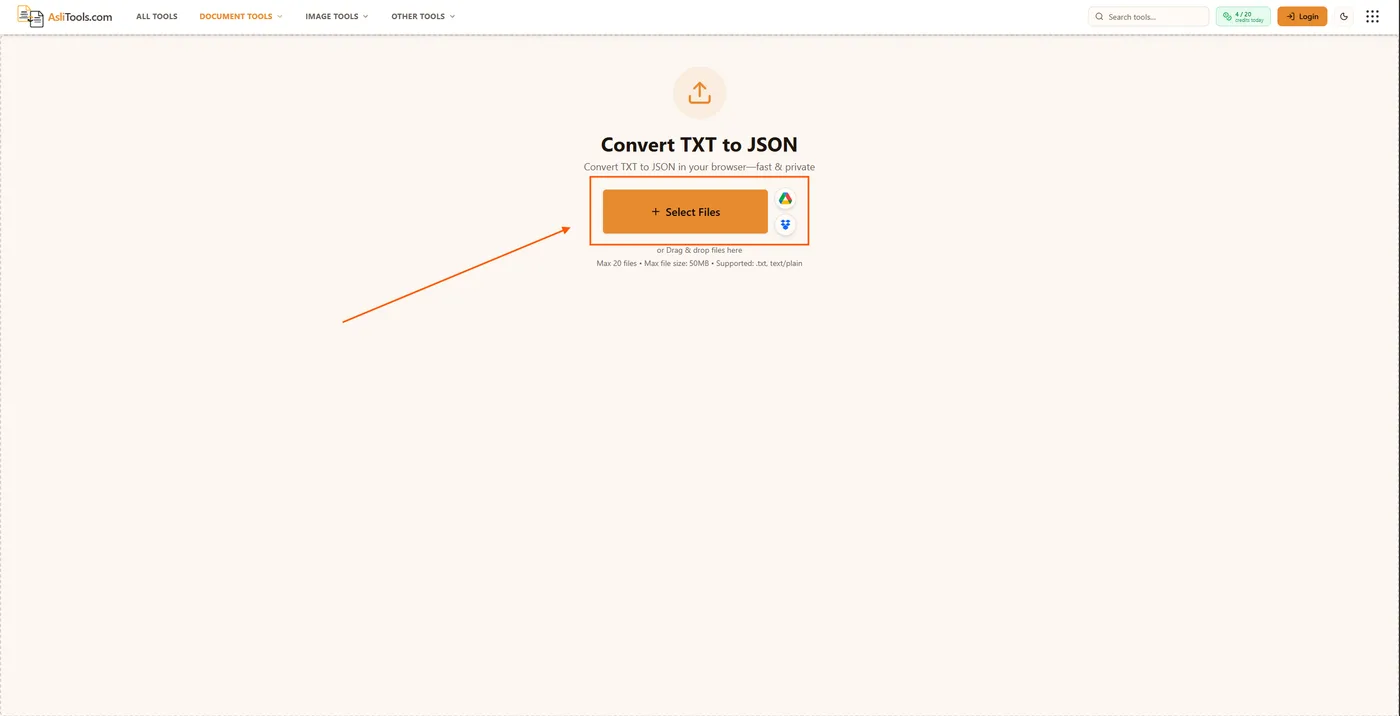
2. Upload your files. Add one file or several. The tool supports batch conversion, so you do not need to repeat the process for every file.
3. Choose your settings. Pick your text encoding (UTF-8 covers almost every case; switch it only if you know your file was saved differently). Then select your output format: Lines as array for plain line lists, or Key:Value as object when each line uses a delimiter like a colon.
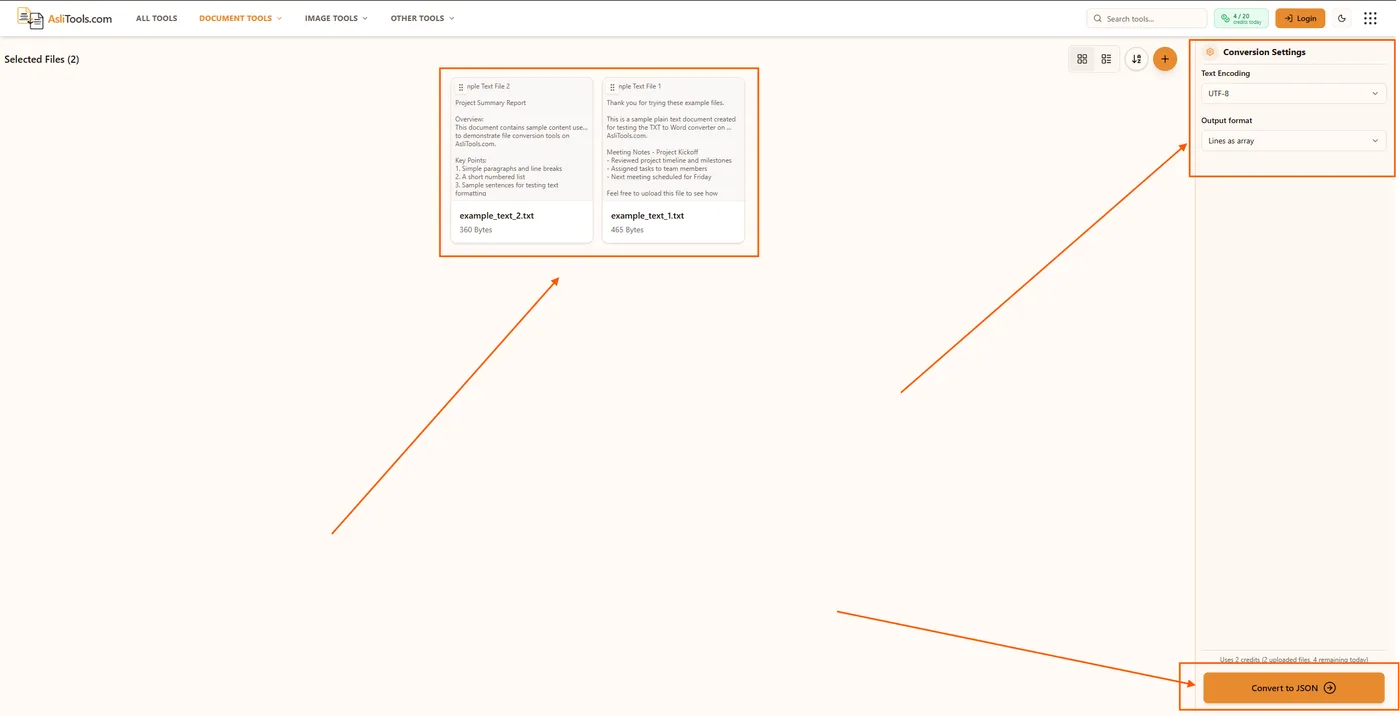
4. Convert and download. Click Convert to JSON, then save each .json file when processing completes.
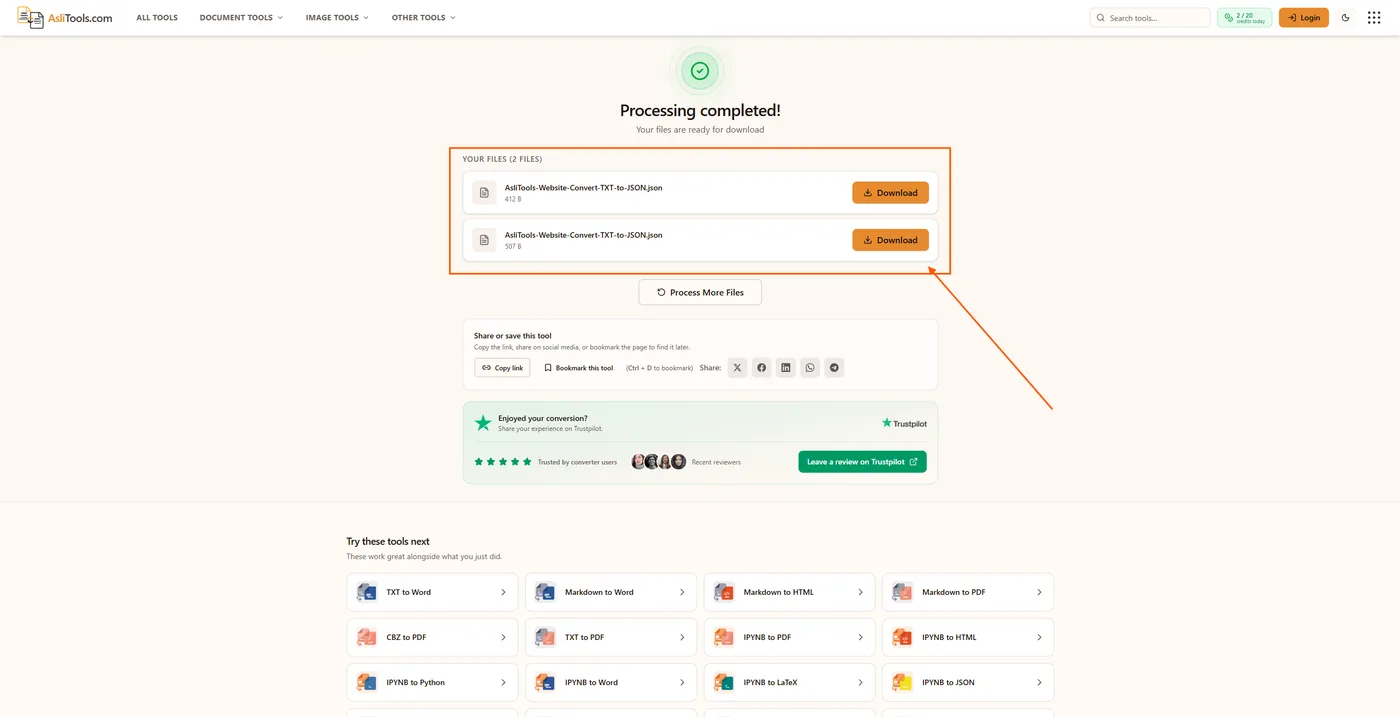
The whole thing runs in your browser. Nothing gets uploaded to a server, which matters if your text file contains anything even mildly sensitive — internal notes, scraped data, exported user info. That is a real difference from a lot of the tools out there that quietly upload your file to convert it server-side.
When You Do Not Need a Converter At All
If you are comfortable writing a few lines of code, sometimes it is genuinely faster to skip the tool:
Python:
with open("data.txt", "r", encoding="utf-8") as f:
    lines = [line.strip() for line in f if line.strip()]

import json
with open("data.json", "w") as f:
    json.dump(lines, f, indent=2)
JavaScript (Node.js):
const fs = require('fs');
const lines = fs.readFileSync('data.txt', 'utf-8')
  .split('\n')
  .filter(line => line.trim() !== '');
fs.writeFileSync('data.json', JSON.stringify(lines, null, 2));
I reach for code when I am converting the same file structure repeatedly as part of a pipeline. For a one-off file, or when I need to hand the JSON to someone non-technical, the browser tool is faster and does not require anyone to have Python or Node installed.
Related Tools
If TXT to JSON is not quite the conversion you need, a few related tools on Asli Tools handle similar text-processing jobs:
- TXT to Word — for turning plain text into a formatted document instead of structured data
- TXT to PDF — when you need a shareable, non-editable version of a text file
- IPYNB to JSON — if you are working with Jupyter notebooks instead of plain text
All of them run the same way: entirely in your browser, no sign-up, no file leaving your device.
Have a text file that is giving you trouble — mixed delimiters, weird encoding, huge line count? Reach out through the contact page and we will take a look.