
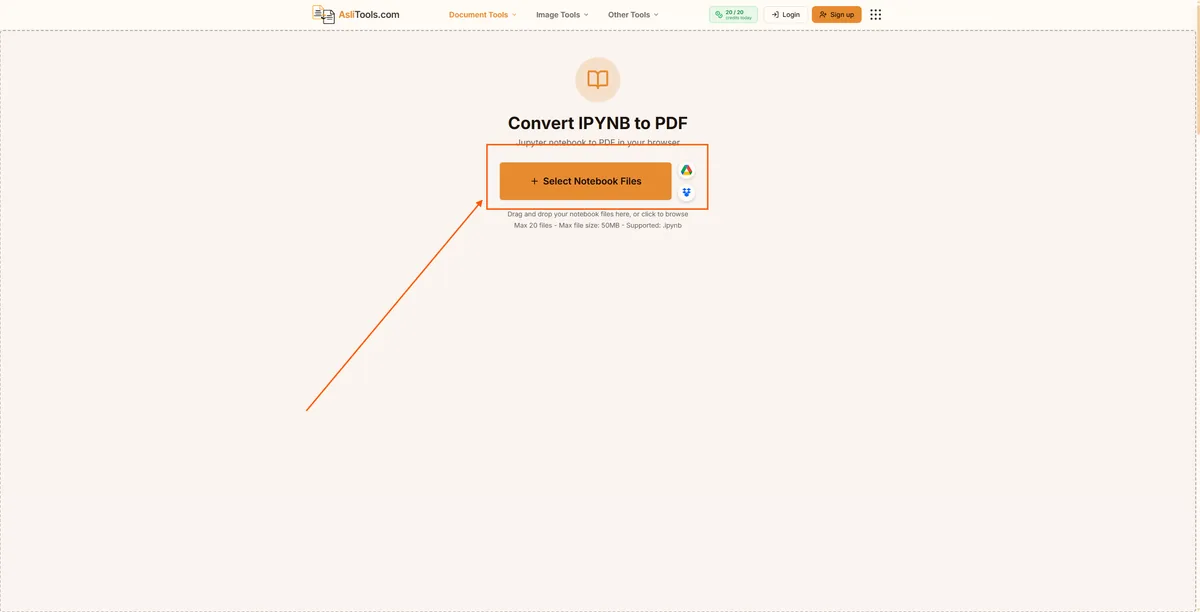
If you've ever tried to turn a .ipynb file into a PDF, there's a good chance you ran into this line somewhere along the way:
nbconvert failed: xelatex not found on PATH
That single error has probably cost data scientists more collective time than any other line in the Jupyter ecosystem. You just wanted a clean PDF of your notebook for a professor, a client, or a hiring manager — and instead you're now staring at instructions to install a multi-gigabyte LaTeX distribution just to export one file.
This guide walks through why that happens, the four real ways to get from .ipynb to PDF, and which one actually makes sense depending on what you're doing. At the end, you can convert your notebook directly using our IPYNB to PDF converter — no LaTeX, no command line, no waiting on a build to finish.
Why Jupyter Notebook PDF Exports Break in the First Place
Jupyter's built-in "Download as PDF" option doesn't generate a PDF directly. It converts your notebook to LaTeX first, then compiles that LaTeX file into a PDF using a LaTeX engine such as xelatex. That extra step is where almost every export failure starts.
If you don't already have a LaTeX distribution like TeX Live or MiKTeX installed, the conversion fails immediately. If you do have one installed, you can still run into missing package errors, broken font references, or notebooks that simply refuse to compile because of a stray character in a markdown cell. None of this has anything to do with whether your code is correct — it's a document-compilation problem wearing a Python error message.
This is also why so many nbconvert tutorials tell you to install gigabytes of software just to export a single file. For a one-off conversion, that's a disproportionate amount of setup.
The 4 Real Ways to Export a Notebook to PDF
1. Jupyter's Built-In "Download as PDF via LaTeX"
Found under File → Download as → PDF via LaTeX. This is the most direct option inside the Jupyter interface, but it depends entirely on a working LaTeX installation. If you're on a shared machine, a school computer, or you simply don't want a multi-gigabyte TeX Live install taking up disk space, this route usually isn't worth it for a single export.
2. The nbconvert Command Line Tool
pip install nbconvert
jupyter nbconvert --to pdf your-notebook.ipynb
This gives you more control — you can hide code cells with --no-input, apply custom templates, or automate exports for a whole folder of notebooks. It's the right choice if you're converting notebooks regularly as part of a pipeline. It still requires LaTeX behind the scenes, and margin issues are common; notebooks with wide code lines, large dataframes, or wide plots frequently get cut off at the page edge unless you adjust the template manually.
3. Browser Print-to-PDF
Open the notebook, use your browser's print dialog, and save as PDF. No installation, no LaTeX. The tradeoff is control — you can't easily hide code cells, adjust margins per-section, or get consistent page breaks, and long outputs or wide tables often get sliced awkwardly across pages.
4. A Dedicated Browser-Based Converter
This is the approach that skips the LaTeX dependency entirely by rendering the notebook directly to a formatted PDF. It's the fastest option when you need a polished result without installing anything, and it's what our IPYNB to PDF tool does — you get page size, orientation, font size, and margin controls, plus toggles for markdown cells, code cells, outputs, and execution counts, all before you generate the file.
Converting IPYNB to PDF in Your Browser: Step by Step
Here's what the process looks like using AsliTools' converter, based on the actual interface:
1. Upload your notebook. Drag your .ipynb file in, or pull it directly from Google Drive or Dropbox if that's where your notebooks live.
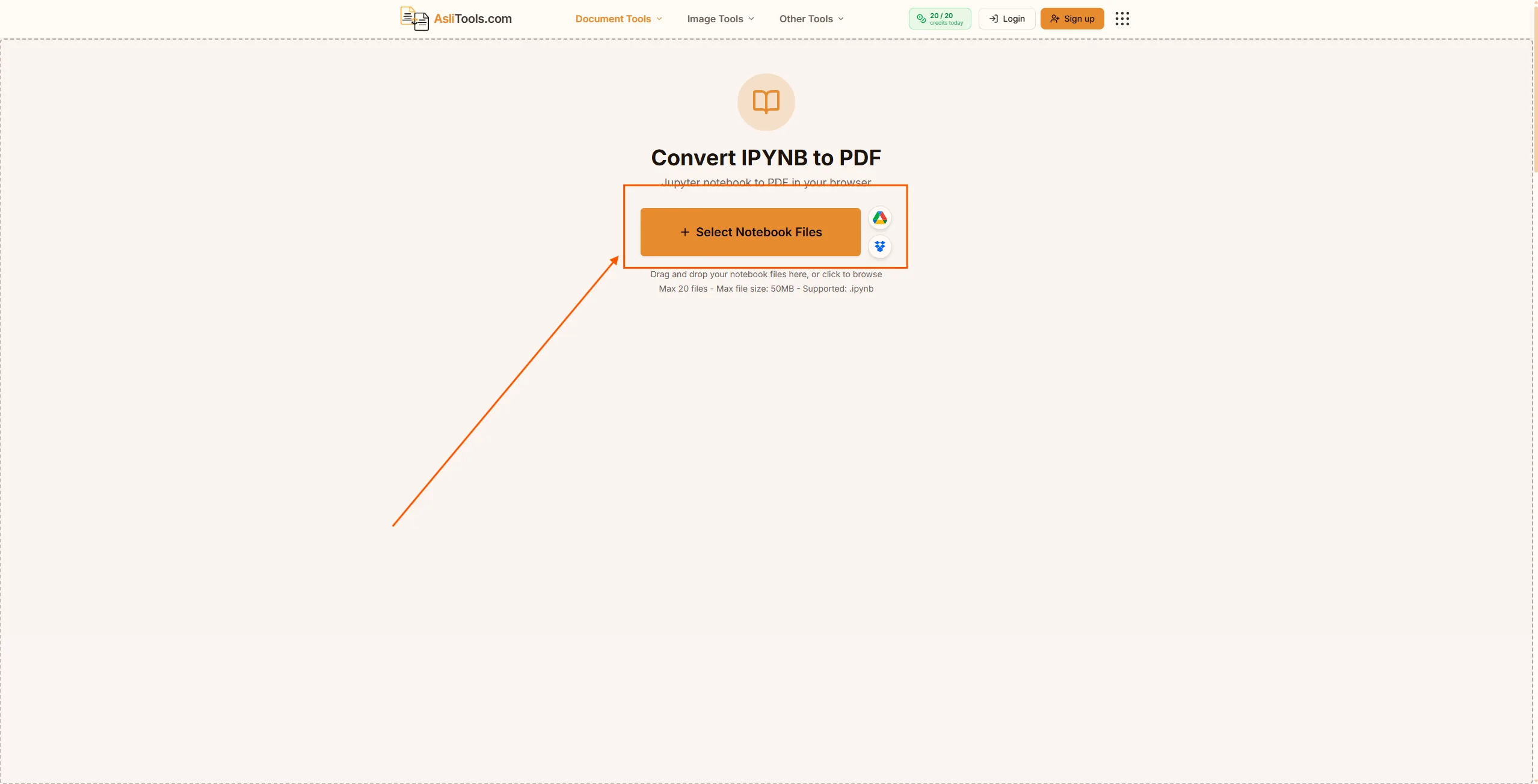
2. Set your page layout. Choose A4 or Letter, portrait or landscape, and adjust font size and margins. If your notebook has wide code cells or plots, landscape orientation and slightly smaller margins usually prevent content from getting cut off.
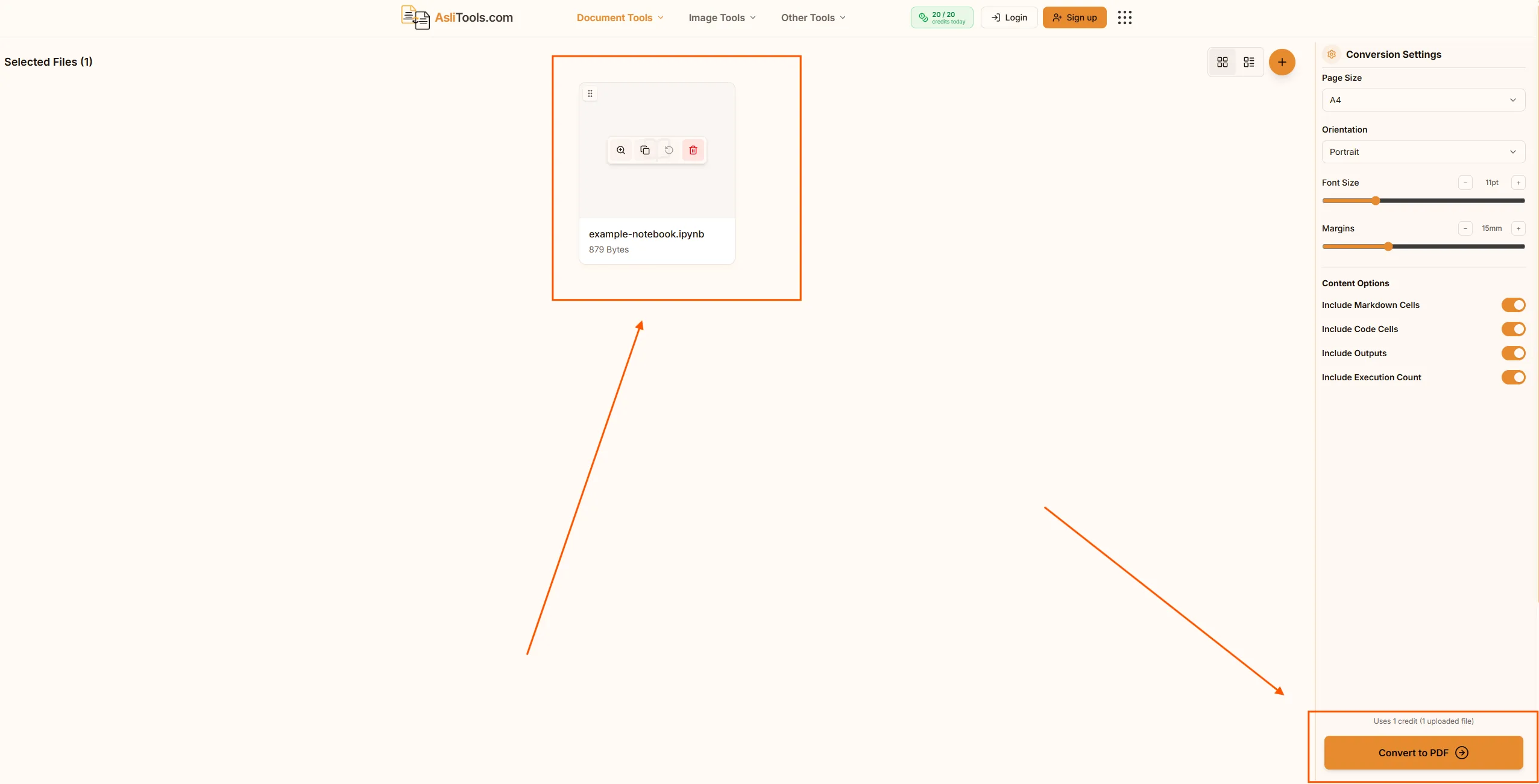
3. Choose what to include. Toggle markdown cells, code cells, outputs, and execution counts on or off. If you're sending the PDF to someone who only cares about results — a manager, a client, a reviewer — turning off code cells and keeping outputs on gives you a much cleaner report.
4. Convert and download. The tool processes the file and gives you a download-ready PDF, typically in seconds for a standard notebook.
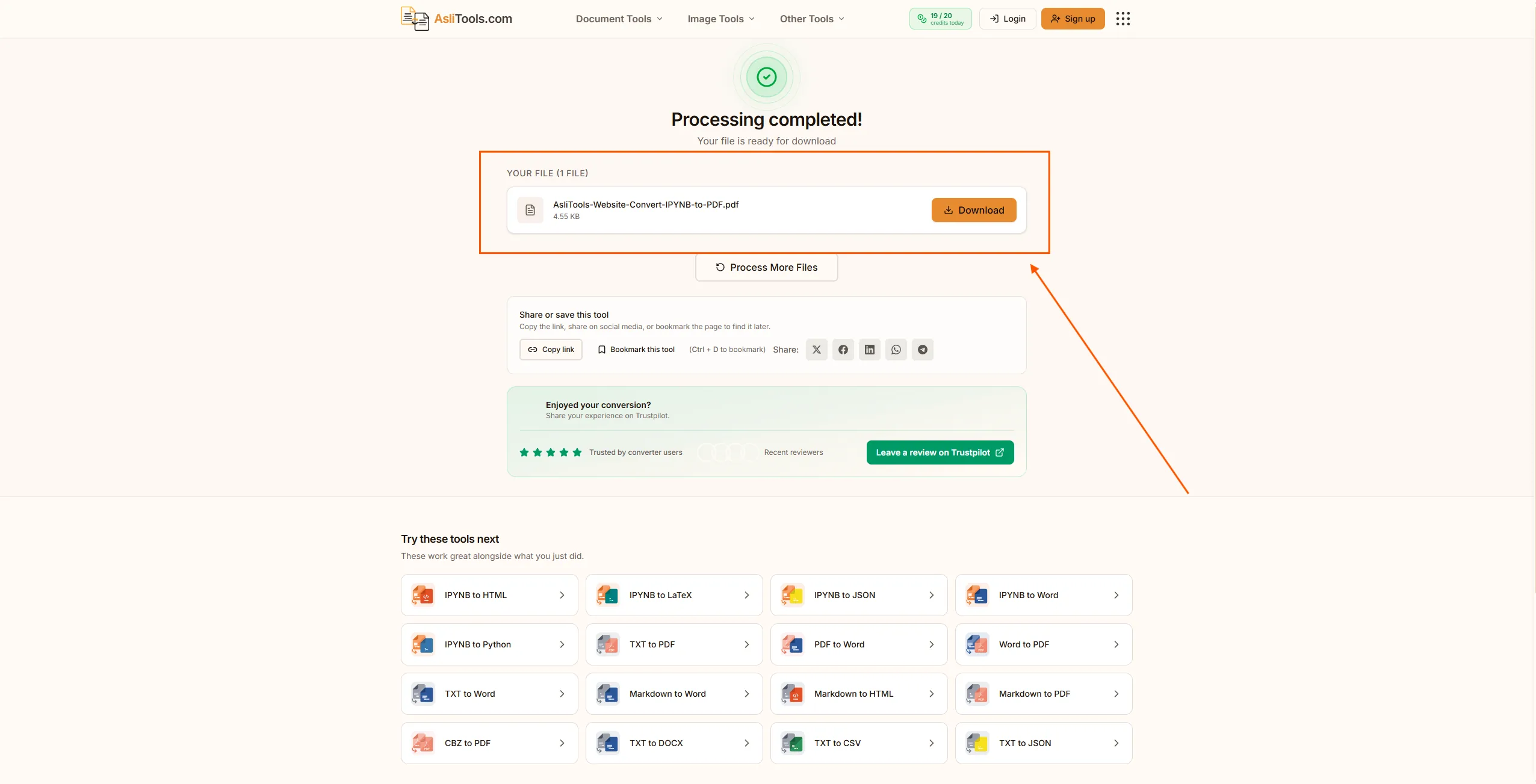
No LaTeX distribution touches your machine at any point in that process, which is the entire point.
Fixing Common Export Problems
"xelatex not found on PATH" — This means no LaTeX engine is installed. You can install TeX Live or MiKTeX, or skip the dependency entirely with a browser-based converter.
Margins cut off code or wide plots — Standard nbconvert templates aren't built for wide content. Switch to landscape orientation, reduce the margin size, or use a converter that lets you adjust margins before export instead of after the fact.
Code cells duplicated in the output — This usually happens when both the input and a rendered version of the same cell get included. Using --no-input with nbconvert, or unchecking "Include Code Cells" in a browser tool, resolves it.
Notebook exported from Google Colab looks different once converted — Colab's own PDF export goes through the browser's print function, which handles wide outputs differently than nbconvert. If the layout looks off, downloading the .ipynb file from Colab and running it through a dedicated converter usually gives more consistent formatting.
When You Actually Need a PDF Instead of the Raw Notebook
A .ipynb file is a JSON document — it needs Jupyter, JupyterLab, or a viewer to render properly. A PDF opens on any device, prints cleanly, and preserves formatting regardless of what software the recipient has. That difference matters most in a few specific situations:
- Academic submissions. Many course platforms and journals want a fixed, non-executable format rather than a live notebook.
- Client or stakeholder reports. Non-technical readers don't want to open Jupyter — they want a document they can scroll or print.
- Archiving. A PDF snapshot preserves exactly what the notebook looked like at that point in time, output and all, without depending on the original environment still working later.
- Portfolio and interview submissions. A polished PDF reads as a finished report rather than a raw code file, which matters when a hiring manager is skimming dozens of submissions.
Related Notebook Conversions
If PDF isn't quite what you need for a particular notebook, a few related conversions are worth knowing about:
- Need an editable version instead of a fixed document? Try IPYNB to Word.
- Sharing the notebook on the web instead of printing it? IPYNB to HTML keeps it interactive-looking without needing Jupyter installed.
- Need just the code, stripped of markdown and outputs? IPYNB to Python extracts a clean
.pyfile. - Working from a markdown report instead of a notebook? Markdown to PDF covers that conversion directly.
Ready to convert? Use the free IPYNB to PDF converter — no sign-up, no LaTeX, no size limits on standard notebooks.
Related tools on Asli Tools: IPYNB to Word, IPYNB to HTML, IPYNB to Python, Markdown to PDF, and IPYNB to JSON.