
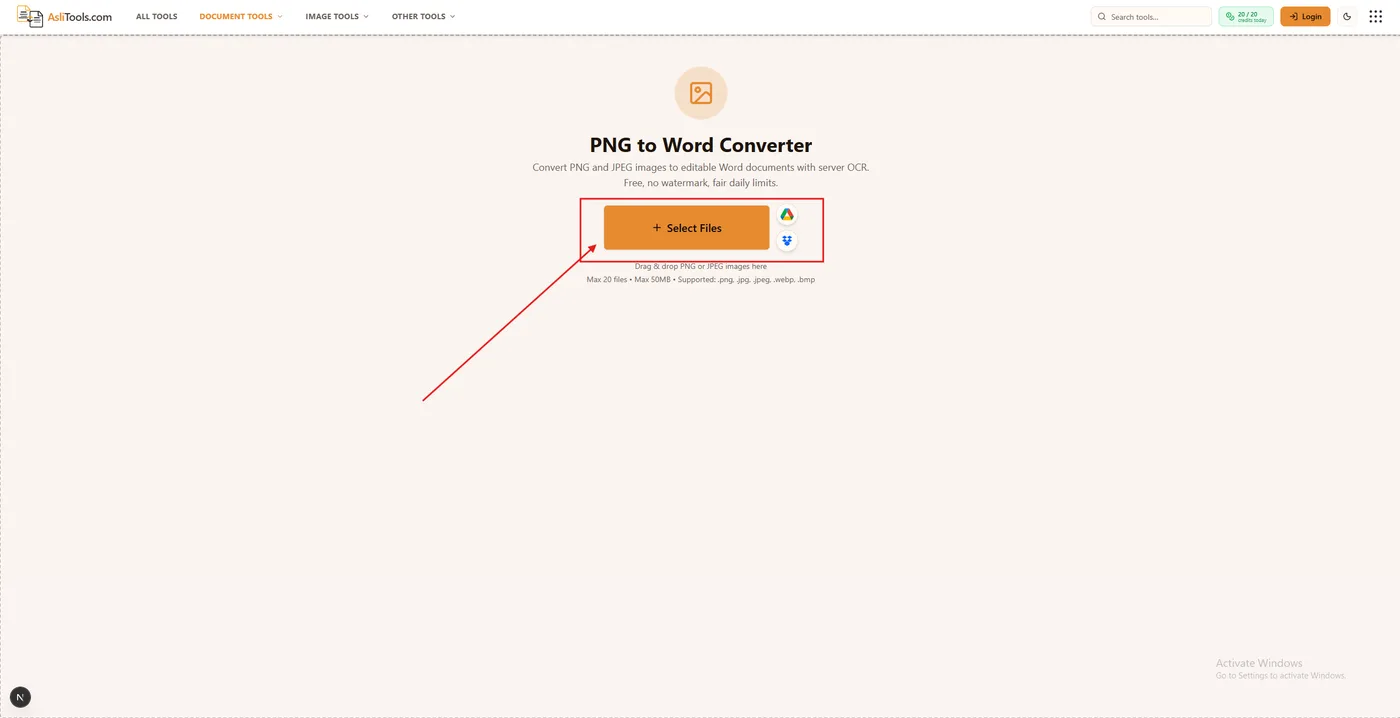
Upload a PNG (or JPEG) to a PNG to Word converter, let OCR extract the text on the server, and download an editable .docx file. That is the fastest way to turn an image into a Word document you can edit without retyping.
Why you'd need to convert an image to Word
Images are great for sharing a page as-is, but they are terrible when you need to change a sentence:
- Edit text that only exists as a screenshot or scanned page.
- Extract wording from a scanned form or letter so you can update and reuse it.
- Recover content from an old file where only an image version survived.
- Turn flyer, poster, or social graphic text into an editable draft.
If you landed here looking for how to convert Word to PNG instead, use the Word to PNG guide and Word to PNG tool.
Step-by-step — Convert PNG to Word in your browser
Use the free PNG to Word tool on Asli Tools.
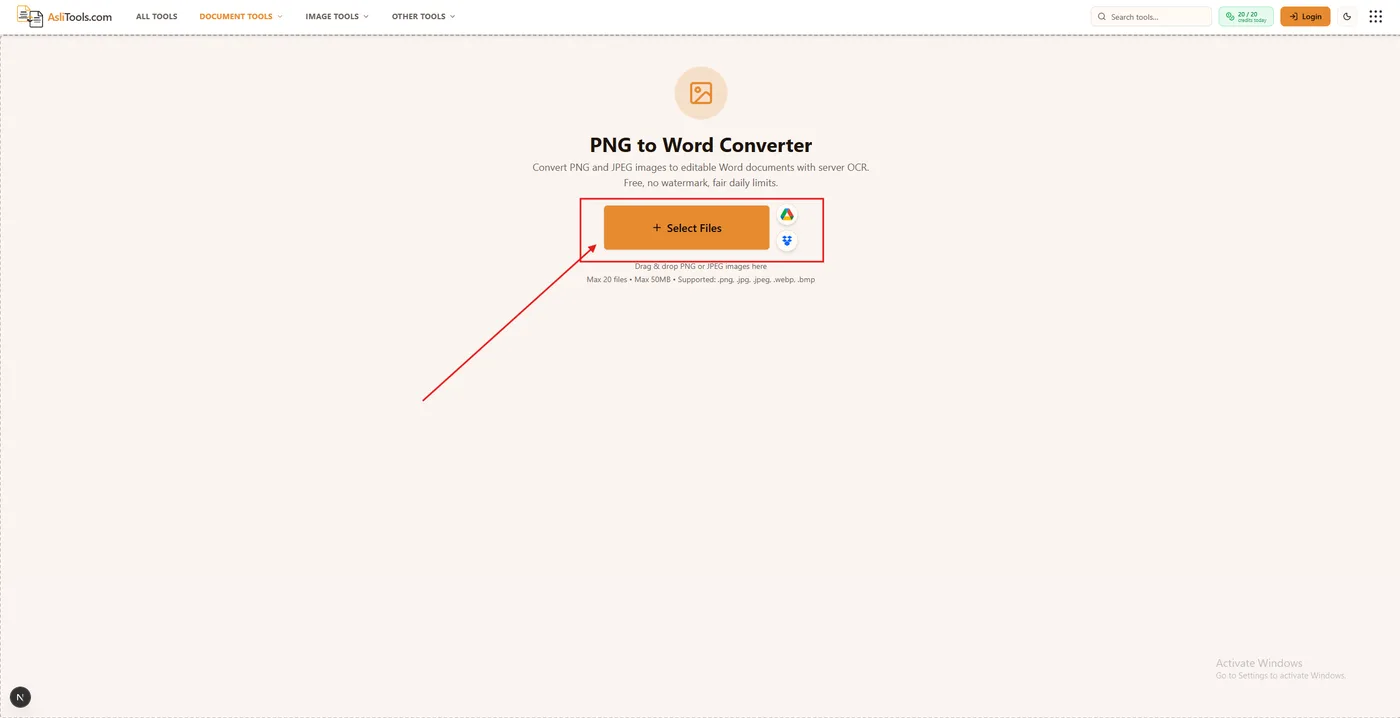
1. Open the converter and upload your image. Go to the PNG to Word converter. Click Upload (or drag and drop) a .png file. JPEG works the same way.
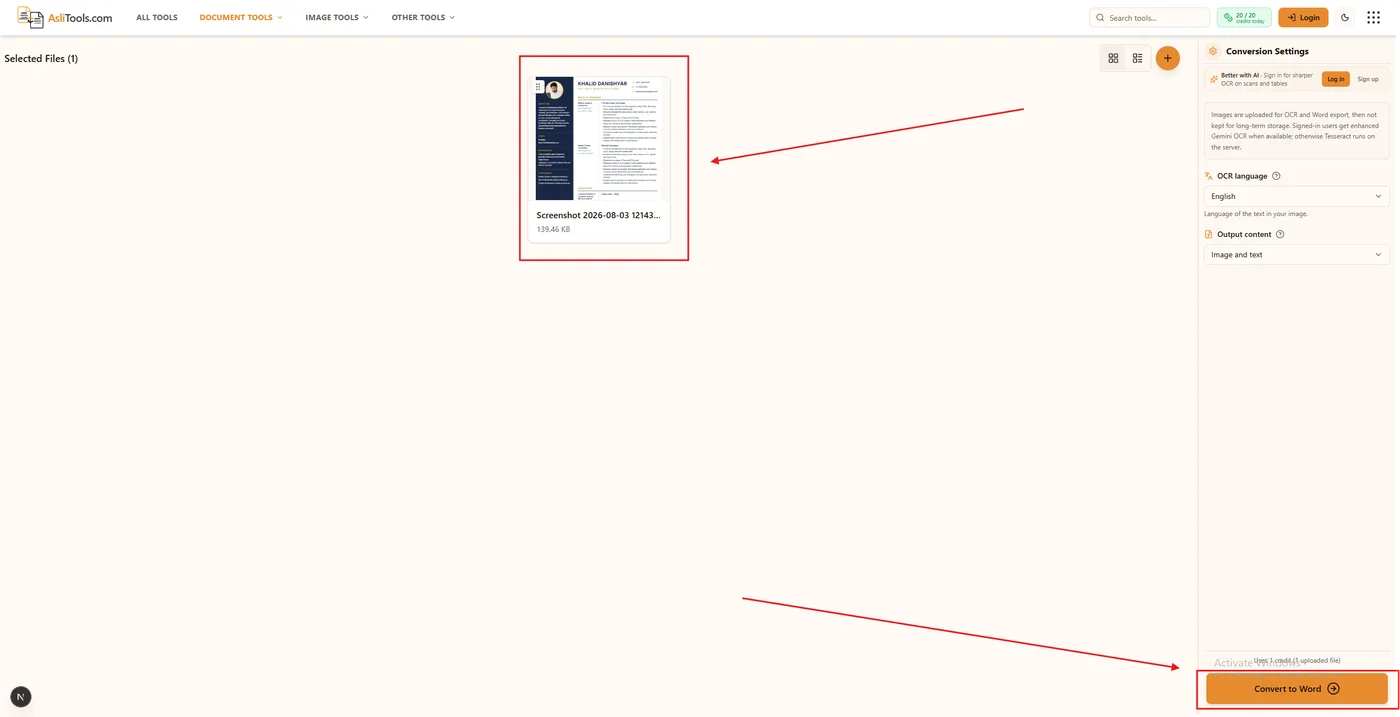
2. Choose OCR options. Pick the language that matches the text in the image. Choose whether the Word file should include extracted text only, the image only, or both (recommended).
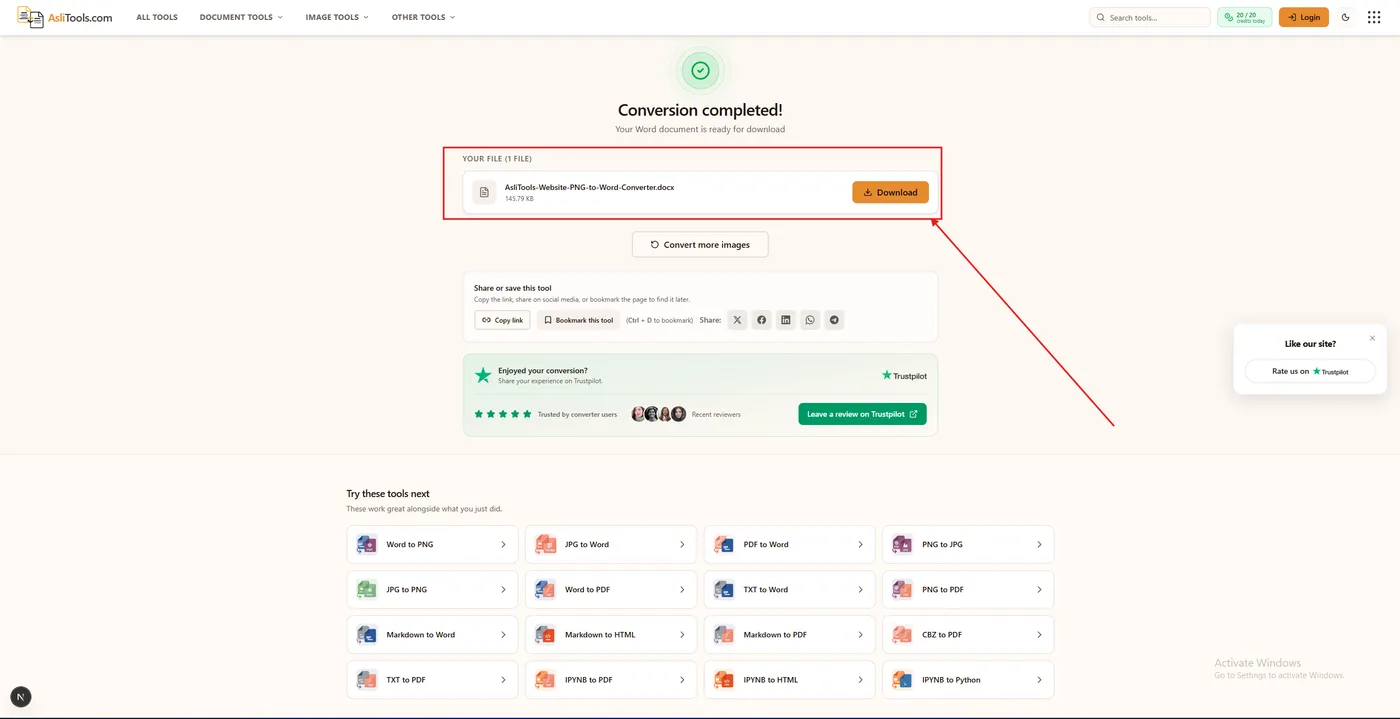
3. Convert and download. Click Convert to Word. When processing finishes, download the .docx file and open it in Word, Google Docs, or LibreOffice. No watermark is added.
What affects accuracy
OCR reads characters from pixels. In testing, a clear screenshot of a typed letter usually extracts paragraph text correctly, while a stylized logo or decorative header can come through as garbled characters that need a quick manual fix. A photo taken at an angle under indoor lighting may still recover body text, but expect more cleanup than from a flat scan.
Best results come from:
- High-resolution, sharp images
- Printed-style fonts (not handwriting or heavy script)
- Correct OCR language selection
- Straight, well-lit pages with good contrast
That limitation is true of image-to-Word tools in general — not a bug unique to this converter.
DOC vs DOCX — which should you choose?
This tool exports DOCX, the modern Word format. DOCX opens correctly in Microsoft Word, Google Docs, and LibreOffice. Legacy DOC (Word 97–2003) is rarely required for new files. If a system specifically demands DOC, open the DOCX in Word and use Save As — for almost everyone, DOCX is the safer default.
Is it safe to convert an image with personal information in it?
Images are uploaded only to run OCR and build the Word file. They are not kept for long-term storage. That is different from a purely offline desktop app — OCR for reliable multi-language extraction runs on the server.
If your policies require air-gapped processing (IDs, signed forms under strict controls), use a local OCR tool instead. For everyday screenshots, flyers, and drafts, short-lived server conversion with no long-term retention is the usual trade-off for accurate text extraction.
FAQ
Is PNG to Word free on Asli Tools?
Yes. Free with fair daily limits and no watermark. Sign in for unlimited free access.
Can I convert JPEG the same way?
Yes. PNG and JPEG are both accepted.
Will complex layouts look identical?
Paragraph text is extracted into an editable document. Multi-column or decorative layouts usually need light manual formatting afterward.
What if I need Word to PNG instead?
Use the Word to PNG converter and the matching how-to article.
Convert your image now
Ready to edit text from a screenshot or scan? Open the PNG to Word converter, upload your image, and download a clean DOCX. Going the other way? Start from Word to PNG.