
You wrote a manuscript in Notepad. You grabbed a transcript from a podcast. You have a short story sitting as a .txt file on your desktop. Now you want to read it on your Kobo, send it to Apple Books, or share it with a friend who reads on a Kindle. The problem? E-readers do not open TXT files natively — at least not with any real formatting or reading experience.
The fix is straightforward: convert the TXT file to EPUB. EPUB is the open standard that virtually every e-reader and reading app understands. And today, you can do it online in a browser — for free, without uploading your files to anyone's server, and without installing a single piece of software.
This guide covers everything you need to know: what EPUB actually is, why TXT files fall short on e-readers, how to run the conversion correctly, and what to do with the output file once you have it.
Why convert TXT to EPUB at all?
Plain text files are useful precisely because they carry no baggage. A .txt file opens on every device, in every operating system, without any compatibility issues. That simplicity is also its biggest limitation when you want a proper reading experience.
E-readers are built around reflowable content — text that adapts to font size, screen orientation, and display width. They expect a structured file with navigation, metadata, and XHTML-encoded content. A raw TXT file gives them none of that.
Here is what you lose when you try to read a TXT file on an e-reader directly:
- No adjustable font size or typeface
- No chapter navigation or table of contents
- No proper line wrapping on smaller screens
- No support for e-reader accessibility features like text-to-speech
- No metadata such as author name, title, or language
Converting your text file to EPUB solves all of this. The resulting file is a proper ebook — one that any reader app treats exactly the same way it treats a commercially published title.
What is EPUB and why e-readers love it
EPUB stands for Electronic Publication. The International Digital Publishing Forum originally developed the format in the mid-2000s as an open alternative to proprietary formats like Amazon's AZW. The W3C now maintains the standard.
Under the hood, an EPUB file is a ZIP archive. Open one with a file archiver and you will find:
- A mimetype file declaring the container as an EPUB
- A META-INF folder with a container.xml file pointing to the OPF package document
- An OPF (Open Packaging Format) file describing the book's metadata and reading order
- One or more XHTML content files holding the actual text
- A NCX or navigation document for the table of contents
- Optional CSS stylesheets, fonts, images, and audio files
When you convert a TXT file to EPUB, the converter packages your plain text into that XHTML content layer and wraps it inside a valid container. The result is a standards-compliant EPUB 3 file that e-readers can parse, render, and navigate.
Good to know: Amazon announced native EPUB support for newer Kindle models in 2022. If you own a Kindle released after that date, you can sideload EPUB files directly without converting them to MOBI or AZW first.
Step-by-step: convert TXT to EPUB online
The fastest way to create an EPUB from a plain text file is with the free TXT to EPUB converter on Asli Tools. The whole process runs in your browser and takes under a minute.
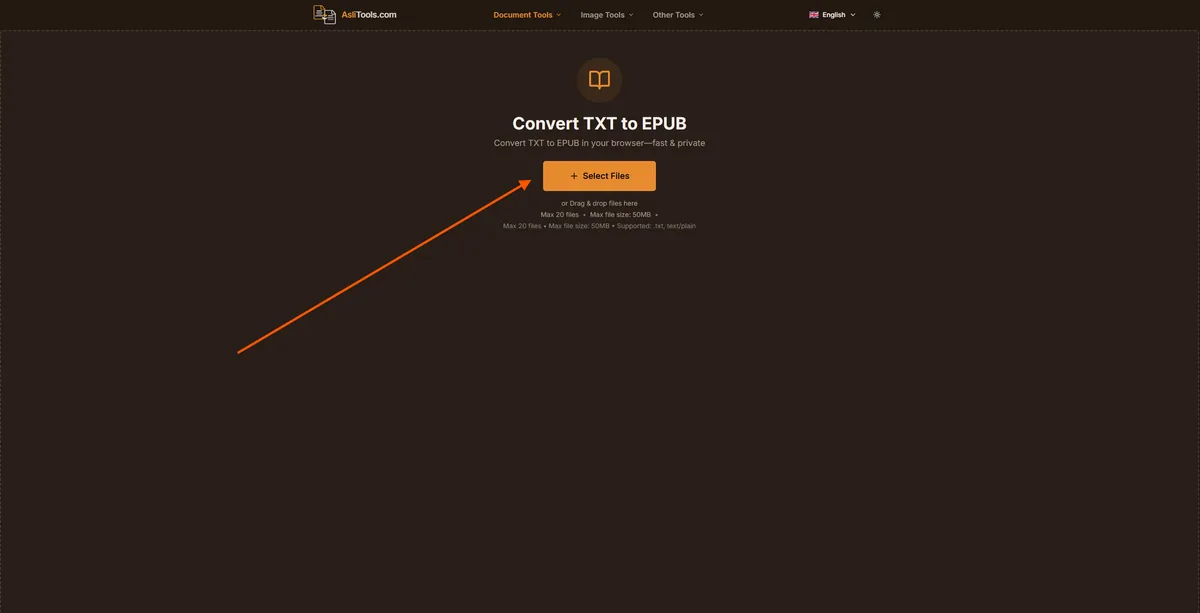
1. Open the converter. Navigate to the TXT to EPUB tool in Chrome, Firefox, Safari, or Edge. No account is required.
2. Upload your TXT file. Drag your .txt file onto the upload area, or click Select Files to browse your device. The tool accepts up to 20 files at once and handles files up to 50 MB.
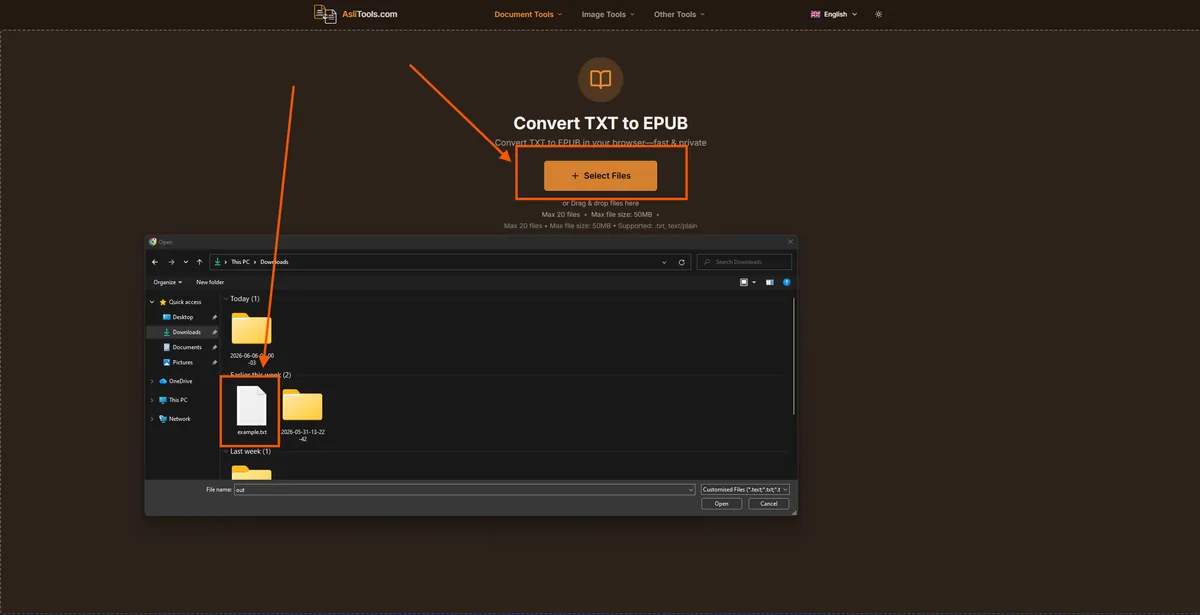
3. Convert and download. Choose UTF-8 encoding if prompted, then click Convert to EPUB. The conversion runs inside your browser. When it finishes, download the EPUB file to your device.
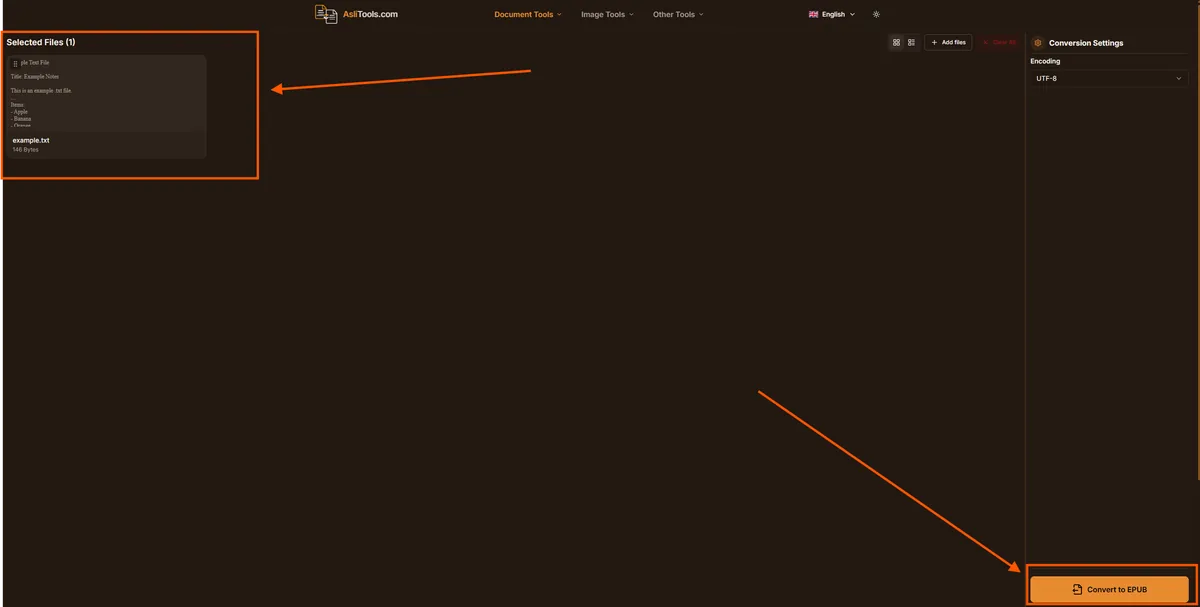
That is genuinely the entire workflow for a basic conversion. You walk away with a valid EPUB 3 file, packaged with your text as XHTML content, ready to open in any major e-reader or reading app.
Batch conversion: The tool accepts up to 20 TXT files in a single session. If you are converting a collection of short stories, chapters, or articles, you can queue them all at once rather than running the tool repeatedly.
Why file privacy matters when you convert
Most online file converters work by uploading your file to a remote server, converting it there, and sending the result back to your browser. That workflow is fine for public documents. It becomes a real concern the moment your text contains anything personal — a diary entry, a business manuscript, medical notes, or a novel you have not published yet.
When you use the Asli Tools TXT to EPUB converter, the conversion runs entirely on the client side. Your browser handles the packaging. Your TXT file never travels across a network connection to an external server. It stays on your device from the moment you select it to the moment you download the EPUB.
This matters for several practical reasons:
- Unpublished manuscripts: Writers working on books they have not released yet do not want file contents accessible on third-party servers, even temporarily.
- Private notes and journals: Personal writing is personal. Browser-based conversion keeps it that way.
- Business documents: Confidential reports or internal content should not pass through public conversion services.
- GDPR and data residency: For users in the EU and UK, client-side processing means no personal data is transmitted to a third-party processor.
Encoding your TXT file correctly before you convert
Character encoding is one area where TXT-to-EPUB conversions can silently go wrong. If your source file uses an encoding other than UTF-8, certain characters — accented letters, curly quotes, em dashes, non-Latin scripts — may appear as garbled symbols or question marks inside the EPUB.
Before you convert, check that your TXT file is saved in UTF-8. Here is how to do that on the most common systems:
On Windows (Notepad)
Go to File → Save As. In the Encoding dropdown at the bottom of the dialog, choose UTF-8. Save the file, then run your conversion.
On macOS (TextEdit)
Open Terminal and run file -I yourfile.txt. If the output shows charset=utf-8, you are already set. If not, open the file in TextEdit, go to Format → Make Plain Text, then save it. TextEdit defaults to UTF-8 for plain text files.
On Linux
Use iconv -f ORIGINAL_ENCODING -t UTF-8 input.txt -o output.txt, replacing ORIGINAL_ENCODING with whatever encoding your file currently uses (for example, ISO-8859-1).
Watch out: Windows sometimes saves files in UTF-8 with BOM (Byte Order Mark). Some older e-readers display the BOM characters as a strange symbol at the very start of your text. If you see this, resave your file as UTF-8 without BOM using a text editor like Notepad++ or VS Code.
What to do after you get your EPUB
The EPUB you get from a plain text conversion is intentionally minimal. It contains your text as a single XHTML content document inside a valid EPUB 3 container. For most use cases — reading a manuscript, sharing a story, loading notes onto your e-reader — that is exactly what you need.
If you want to go further and turn it into something closer to a professionally published ebook, here are the next steps most authors take:
Add metadata in Calibre
Calibre is a free, open-source ebook management application. Open your EPUB in Calibre and click Edit Metadata. From there you can add the book title, author name, publisher, language, publication date, ISBN, and a cover image. Calibre writes those values back into the OPF package document inside the EPUB.
Add a table of contents
A basic TXT-to-EPUB conversion produces a single content file with no chapter navigation. To add chapter breaks, open the EPUB in Sigil — another free ebook editor — split the content file at each chapter heading, and let Sigil generate a navigation document automatically.
Add a cover image
E-readers display the cover image in your library grid. In Calibre, click the cover area in the metadata editor and select an image from your device. Calibre embeds it correctly inside the EPUB package.
Validate the EPUB
If you plan to submit your ebook to a distribution platform, run it through EPUBCheck first. EPUBCheck is the official W3C validation tool and it will flag any structural issues before a distributor's automated checks do.
E-reader compatibility: Kindle, Apple Books, Kobo and more
EPUB is the dominant open ebook format, and virtually every non-Amazon e-reader supports it natively. Here is how the major platforms handle EPUB files:
| E-Reader / App | Native EPUB Support | Notes |
|---|---|---|
| Apple Books (iOS / macOS) | Yes | Full EPUB 3 support including CSS and multimedia |
| Kobo (all models) | Yes | Excellent EPUB support; sideload via USB or Dropbox |
| Google Play Books | Yes | Upload EPUB files directly to your library |
| Kindle (2022 models +) | Yes | Amazon added EPUB support for newer Kindle hardware in 2022 |
| Kindle (pre-2022) | Limited | Send To Kindle app may convert on receipt; MOBI was the older standard |
| NOOK | Yes | Barnes & Noble's platform is EPUB-native |
| Calibre (desktop) | Yes | Reads and converts virtually all ebook formats |
| Moon+ Reader (Android) | Yes | Popular Android reading app with strong EPUB 3 support |
The EPUB files produced by the Asli Tools converter are valid EPUB 3 documents. They open cleanly on every platform in the table above.
Browser tool vs desktop software: which is better?
People who regularly work with ebooks — authors, editors, library staff — often ask whether a browser-based converter can match the output quality of desktop applications like Calibre or Sigil. The honest answer depends on what you are trying to accomplish.
| Feature | Browser Tool (Asli Tools) | Desktop App (Calibre / Sigil) |
|---|---|---|
| Installation required | None | Yes |
| File privacy (stays on device) | Yes | Yes |
| Speed for simple conversion | Instant | Fast, but requires launching app |
| Chapter splitting / navigation | Not included | Full support |
| Custom cover images | Not included | Full support |
| Advanced CSS styling | Minimal | Full support |
| Works on mobile / tablet | Yes | Desktop only |
| Cost | Free | Free (open source) |
For most people — readers who want their TXT on an e-reader, writers who want a quick proof of concept, or anyone sharing a text document with someone who uses Apple Books — the browser tool is faster and simpler. You open a page, drop a file, and you are done.
If you are preparing an ebook for commercial distribution, building a structured multi-chapter work, or need a custom cover and metadata, combine both: use the Asli Tools converter to get a valid EPUB quickly, then open it in Calibre or Sigil to add polish.
Related conversions you might need
Depending on where your writing ends up, you may also need these tools from Asli Tools:
- TXT to PDF — when you need a fixed-layout document for printing or sharing as a universal file
- EPUB to PDF — convert your finished ebook to PDF for platforms that do not accept EPUB
- TXT to Word — bring plain text into a Word document for editing with full formatting controls
- Markdown to HTML — if your text uses Markdown syntax, convert it to web-ready HTML
- Markdown to PDF — turn formatted Markdown documents into print-ready PDFs directly in your browser
- IPYNB to HTML — convert Jupyter notebooks to shareable HTML pages without running a server
Ready to create your EPUB?
If you have a plain text file that needs to become a proper ebook, there is nothing standing between you and that conversion. No software to install, no account to create, no payment required.
Open the tool, upload your file, and download your EPUB in seconds.
Related tools on Asli Tools: TXT to PDF, EPUB to PDF, TXT to Word, Markdown to HTML, Markdown to PDF, IPYNB to HTML, IPYNB to PDF, and PDF Compressor.